Power Automate and SharePoint: Trigger Patterns, Limits, and Best Practices
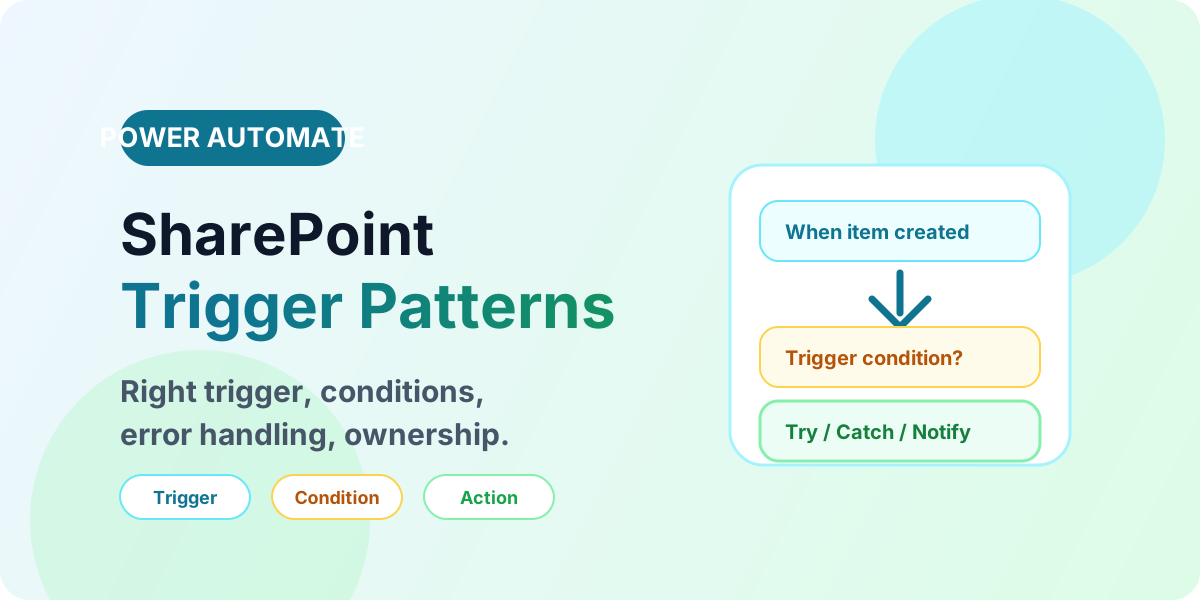
Build reliable SharePoint flows with the right triggers, trigger conditions, error handling, and production ownership patterns.
- Published
- Updated
- Reading time
- 3 min read
What you’ll learn
- Choosing the trigger
- Filter with trigger conditions
- Preventing loops
- Production checklist
- Concurrency and throughput
On this page (8 sections)
Direct answer: Pick the narrowest SharePoint trigger that matches the business event, filter early with trigger conditions, handle errors with Try/Catch scopes, and assign a service owner. Most unreliable SharePoint flows fail on one of those four — not on complex expressions.
New to flows? Start with cloud flows and flow types. For resilience patterns see error handling and keep variables and Condition vs Switch handy.
Choosing the trigger
| Trigger | Use when | Watch out |
|---|---|---|
| When an item is created | New requests, orders, tickets | Bulk imports fire hundreds of runs — throttle or schedule. |
| When an item is created or modified | Status lifecycles | Add trigger conditions or the flow loops on its own updates. |
| When a file is created/modified | Document approvals | Checked-out and draft files may not trigger until published. |
| For a selected item/file | Human-initiated actions | Requires user context; not for background sync. |
Filter with trigger conditions
Trigger conditions run before a flow instance is created, saving runs and cost. Example: only continue when Status equals Submitted. Combine with column-specific triggers (e.g. only when Status changes) rather than reacting to every edit. This is the single highest-ROI reliability habit for SharePoint flows.
Preventing loops
- Have the flow set a hidden flag (e.g. FlowProcessed = Yes) and add a trigger condition that skips items already flagged.
- Compare trigger outputs: if Modified By is the flow connection, terminate early.
- Prefer updating a different list/library (audit log) over updating the triggering item where possible.
Production checklist
- Connection owned by a service account or team, not an individual maker.
- Try/Catch scope around SharePoint writes with logging to an error list and Teams notification.
- Concurrency control on high-volume triggers to avoid lock conflicts.
- Test with drafts, approvals, bulk edits, and permission-restricted users — not just happy-path admin edits.
- Document trigger, conditions, and expected volume in the flow description.
Concurrency and throughput
High-volume triggers need concurrency control: cap parallel runs where SharePoint locks collide, batch bulk operations instead of firing per-item flows, and use the concurrency and retry settings deliberately rather than accepting defaults. For imports above a few thousand rows, prefer a scheduled flow that pages through changes over an event trigger per row — throttling is a signal, not an insult.
Observability: find failures before users do
- Log every caught error to a central error list with flow name, item ID, timestamp, and action context.
- Alert the owning team in Teams on failure clusters, not single transient faults that self-resolve on retry.
- Review run history weekly for the first month: cancelled runs, long durations, and retry storms reveal design debt.
- Version flows with meaningful run notes so the next owner understands what changed and why.
Approval patterns that stay reliable
Separate the trigger from the approval: capture the request event, store approval state in list columns, and let the approval action update state the trigger conditions recognize. Timeouts, reassignments, and rejections each need explicit branches — silent timeouts are the most common approval-flow complaint. See approval workflows for the full pattern.
FAQ
Should flows trigger on system updates? Usually no — exclude service-account edits with trigger conditions so maintenance work does not cascade into notifications and approvals.
When should logic move out of the flow? When expressions grow nested and unreadable, push transformations into list calculated columns, views, or a child flow with a clean contract. Readable beats clever at 2 AM.
SharePoint design affects flow reliability: clean libraries, disciplined permissions, and clear metadata reduce trigger surprises. For approval-heavy flows also read approval workflows and the Power Automate hub.
Related resources
Topics covered
Triggers · Cloud Flows · Workflow Automation
Frequently asked questions
Which SharePoint trigger should I use?
Use When an item is created for new records, When an item is created or modified for lifecycle flows with trigger conditions, and For a selected item/file for manual actions.
Why is my SharePoint flow not triggering?
Check trigger conditions, draft/approval state, permissions of the connection owner, and whether bulk updates bypassed the expected event.
How do I avoid infinite trigger loops?
Add trigger conditions that skip updates your own flow makes, and write status columns the flow checks before acting.
Sources
- Microsoft Learn: Sharepoint Overview, Microsoft
- Microsoft Learn: Get Started Logic Flow, Microsoft
Have a Microsoft 365 topic idea?
Share article suggestions, community session ideas, corrections, or real-world scenarios for future nextM365 learning notes.
Keep learning Microsoft 365
Explore more practical tutorials for SharePoint, Power Platform, Copilot Studio, migration, automation, governance, and security.
Continue learning
Related tutorials
Related questions
Related comparisons