Successful migration is not simply moving files. Each lifecycle stage has to account for information architecture, permissions, metadata, dependencies, customizations, workflows, governance and business requirements — otherwise content arrives but users cannot work with it.
Plan, assess, migrate and validate SharePoint and Microsoft 365 migrations with practical guidance built around real migration decisions.
Successful migration is not simply moving files. It requires understanding information architecture, permissions, metadata, dependencies, customizations, workflows, governance and business requirements before any content moves. Skipped assessment is the most common reason migrations technically complete but fail for users.
Use this hub to choose your migration scenario, run a structured assessment, plan waves and pilots, execute controlled cutover, validate every wave with evidence, troubleshoot common failures, and modernize classic SharePoint dependencies instead of carrying them forward.
Use this lifecycle to keep migration decisions visible. Each stage is short enough to scan, but links into a deeper guide where nextM365 already has supporting content.
01
Assess
Confirm scope, source systems, risks and readiness before choosing timelines.
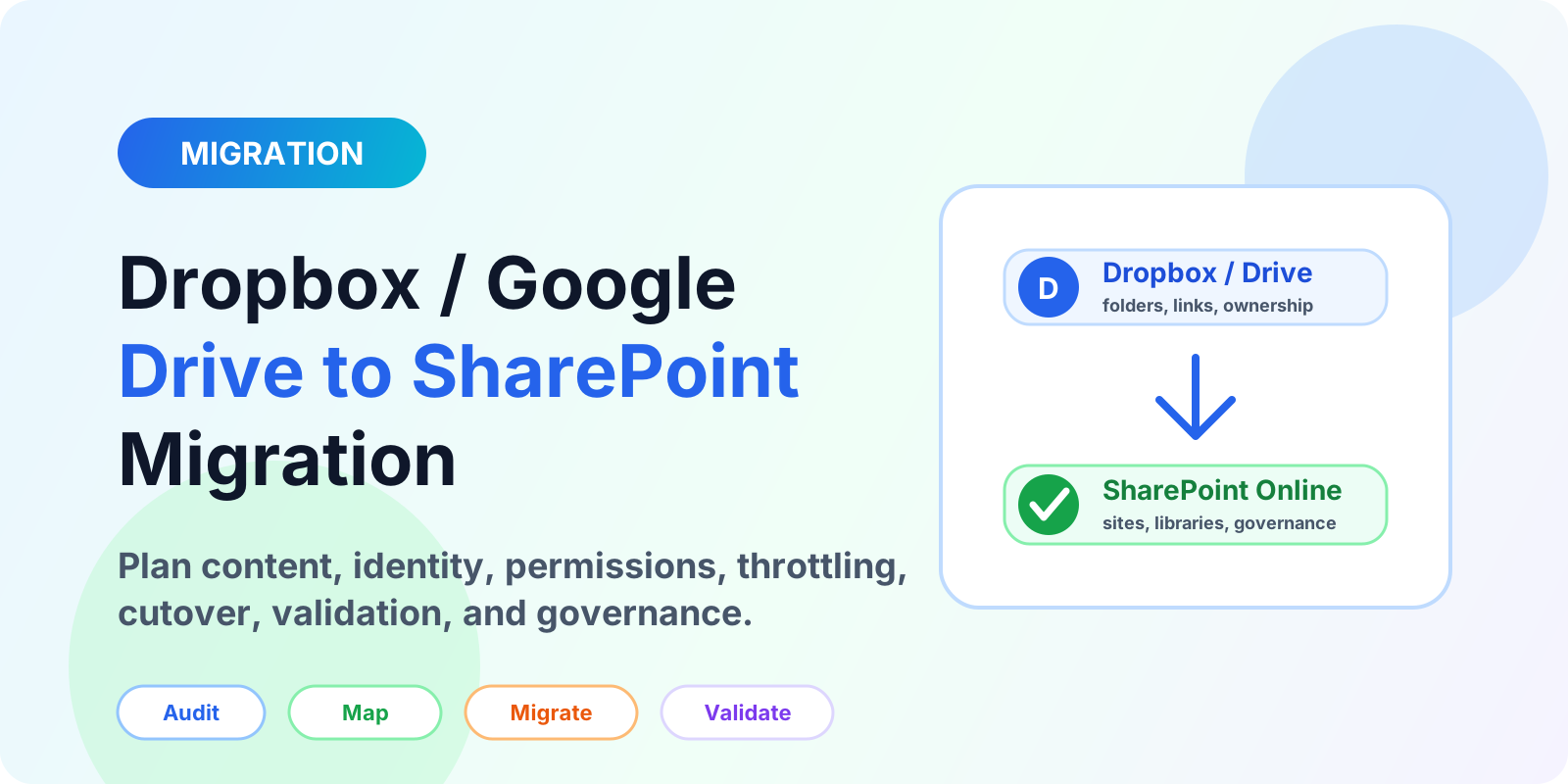
Different sources create different risks. Pick the path closest to your environment, then follow it into assessment, planning and validation — each card links only to published nextM365 guides for that scenario.
SharePoint → SharePoint Online
Sites, libraries, lists, metadata, versions and permissions moving into a designed SharePoint Online architecture.
Common complexity: classic pages, legacy permissions, custom scripts, SharePoint Designer workflows and metadata mapping.
A migration is not always a lift-and-shift exercise. Existing content, classic pages, custom JavaScript, SharePoint Designer workflows, InfoPath forms, legacy web parts, SPFx packages, Power Apps and Power Automate flows should each receive a decision.
Migrate
Move content or capability when it is still owned, useful, compliant and supportable in the target.
Retire
Remove stale content, unused pages and abandoned customizations before they become target debt.
Replace
Use standard modern SharePoint, lists, libraries, pages, formatting or Microsoft 365 features where they fit.
Modernize
Adapt valuable classic capability into modern SharePoint, Power Platform or supported integration patterns.
Rebuild
Rebuild only high-value custom experiences with clear requirements, ownership and lifecycle funding.
Assessment decides what deserves to move, what should be archived, and what must be remediated first. Inventory the full surface — not just file counts — then convert findings into risk analysis, target architecture and a waved plan. Most failed migrations skipped this phase, not the copy itself.
Content inventory
Data volume
Item counts
Sites
Libraries
Lists
Files
Metadata
Content Types
Permissions
External sharing
Version History
Workflows
InfoPath
Forms
Custom Scripts
Classic SharePoint
Web Parts
SPFx
Power Apps
Power Automate
APIs
Integrations
Search
Compliance requirements
Storage
Large Files
Unsupported Content
Step 1
Source Environment
File shares, SharePoint, Google Drive, Dropbox, Box or source tenant.
→
Step 2
Inventory
Counts, sizes, paths, owners, permissions, versions and integrations.
→
Step 3
Risk Analysis
Blockers, sprawl, legacy dependencies and remediation effort.
→
Step 4
Target Architecture
Hubs, sites, libraries, metadata, groups and governance.
→
Step 5
Migration Plan
Waves, pilots, tooling, communication and exit criteria.
Working through content inventory, permissions, metadata, legacy customizations or validation? Describe your source environment, target environment and migration challenge.
Planning turns assessment findings into an executable program: scope, information architecture, waves, permissions, metadata and acceptance rules agreed before production content moves. Review this with business owners — migration is a business cutover, not only an IT copy job.
Scope
Record what moves, what is archived, what is out of scope and what is deferred.
Business requirements
Capture retention, compliance, access and continuity needs per workload.
Information architecture
Design hubs, sites, libraries, metadata and navigation before moving data.
Migration waves
Group content by owner and destination so each wave has a clear exit.
Pilot groups
Include complex libraries with unique permissions, large files and active collaboration.
Permissions
Map source groups to Entra ID, Microsoft 365 and SharePoint groups; simplify where possible.
Metadata
Define content types, required columns, defaults and migration-time mappings.
Downtime
Plan freeze windows, read-only periods and delta passes for changing content.
Change management
Prepare owners and users for new links, navigation, sync and sharing behavior.
Rollback considerations
Agree exception handling, re-run rules and when a wave is paused rather than forced.
Communication
Publish schedules, cutover instructions, support contacts and known issues per wave.
Validation criteria
Define what “done” means — counts, permissions, links and owner sign-off — before cutover.
Execution is a sequence of controlled passes — not a single copy. Remediate first, prove the approach with a pilot, move in waves, catch changes with delta passes, then cut over with communication and validation. Not every migration follows exactly the same process: a file-share move, a tenant-to-tenant program and a classic modernization each weight these phases differently.
1
Pre-migration remediation
Fix long paths, invalid names, blocked types, checked-out files and orphaned ownership found during assessment.
2
Pilot migration
Move one or two representative libraries end to end and validate counts, permissions, metadata and search with owners.
3
Incremental migration
Copy bulk content in waves while users keep working in the source; track exceptions per wave.
4
Full migration
Complete the in-scope bulk passes for a wave, including permissions, versions and metadata mappings.
5
Delta migration
Re-run changed and new items until unexpected deltas reach zero before cutover.
6
Cutover
Switch users to the target, update links and navigation, and set the source to read-only or retired per plan.
7
User communication
Confirm where content lives, what changed, how sync and sharing work, and where to get help.
8
Post-migration validation
Collect evidence, resolve exceptions and record business sign-off before closing the wave.
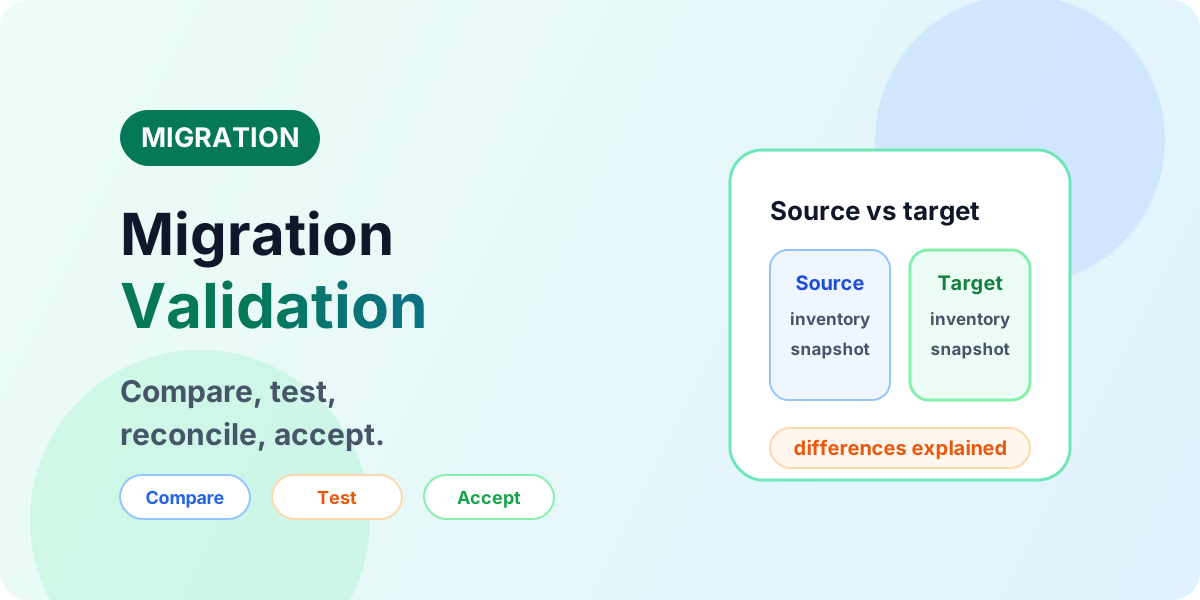
Validation is where migration succeeds or silently fails. Compare source and target with evidence — counts, permissions, metadata, links and behavior — instead of relying on spot checks or tool success messages alone. Require business-owner sign-off for every wave before users depend on the target.
Step 1
Source Inventory
↓
Step 2
Migration
↓
Step 3
Target Inventory
↓
Step 4
Automated Comparison
↓
Step 5
Exception Review
↓
Step 6
Business Sign-Off
Content fidelity
Site counts
Library counts
Folder counts
File counts
Metadata
Content Types
Version History
Lists
Views
Access and sharing
Permissions
Sharing links
External sharing
Users
Groups
Business validation
Functionality and discovery
Failed items
Content integrity
Links
Search
Workflows
Power Automate flows
Power Apps connections
SPFx components
Integrations
Validation also covers behavior: open migrated libraries as a business user, test search, confirm sharing still works, and re-check Power Automate flows, Power Apps data sources and integrations that pointed at the old locations.
Tool selection matters, but discovery, architecture, remediation, execution and validation decide whether the migration actually works for users. Avoid choosing a tool before the source estate and target architecture are understood.
Microsoft migration tooling
SharePoint Migration Tool and Migration Manager can fit Microsoft-supported source scenarios, but still depend on assessment, permissions, cleanup and validation.
When a migration reports success but users report missing files, broken access or dead links, the cause is usually one of a small set of repeatable problems. Treat each as a workstream with an owner, a remediation rule and a re-validation step — then record the exception instead of carrying it silently into the next wave.
Failed files
Blocked types, locked files and tool exceptions need per-wave exception reports, not silent skips.
Invalid characters
Characters valid in the source may be blocked in SharePoint; rename and re-run with an exception log.
Long paths
Deeply nested folders exceed practical limits; flatten structure and shorten names before bulk waves.
Large files
Confirm size limits, sync behavior and version policy for media, archives and data exports.
Permissions
Migrated files are unusable when access is missing or too broad; sample inheritance breaks and group mappings.
Missing users
Orphaned owners and departed accounts must be remapped to accountable owners before sign-off.
Metadata
Required columns, defaults and content types fail silently when mappings are incomplete.
Version history
Agree how many versions travel; verify order and timestamps on sampled documents.
Throttling
Large waves hit service limits; schedule, batch and retry rather than forcing throughput.
Broken links
Bookmarks, Teams tabs, intranet pages and templates pointing at old locations need remediation.
Unsupported customizations
Script-based pages and legacy solutions do not move as-is; assess them as modernization work.
Workflow dependencies
Library-attached workflows pointing at old URLs must be rebuilt and tested in parallel.
Search
Content that moved but cannot be found is not done; verify crawl, metadata and result relevance.
External sharing
Guest access should be re-invited under governance, not bulk-copied without owners.
Where these problems are covered on nextM365
Troubleshooting guidance below links only to published articles — no placeholder pages.
Migration exposes legacy dependencies that cannot move forward as-is. Inventory them during assessment and give each an explicit disposition — carrying classic customizations into modern SharePoint without review is how teams inherit the same support burden in a new tenant.
Classic pages
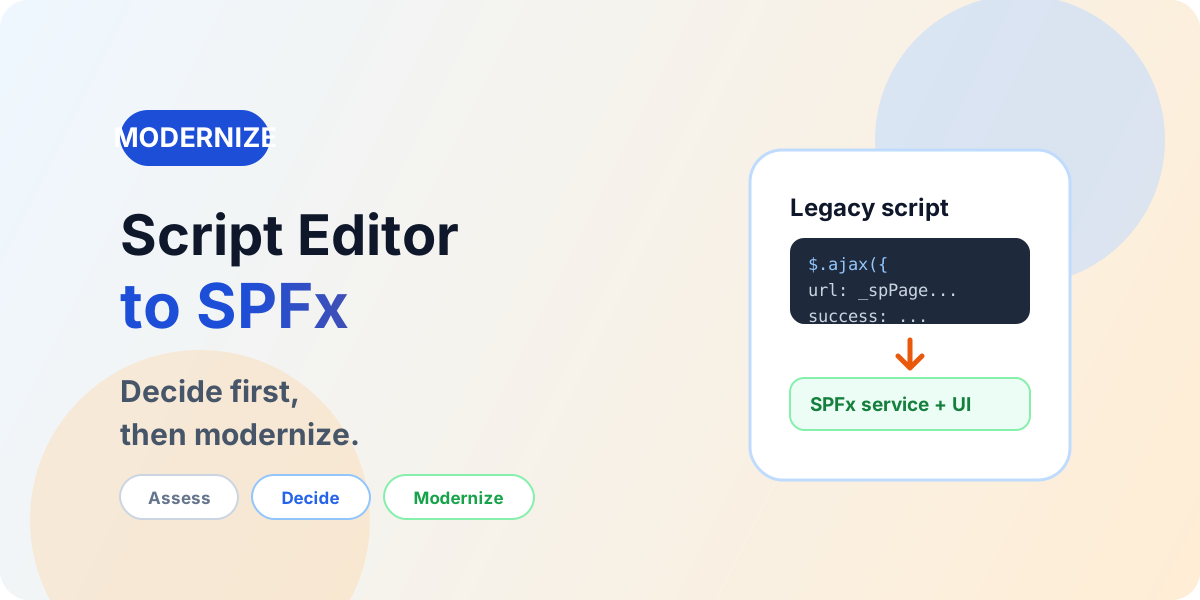
Script Editor Web Parts
Content Editor Web Parts
JSLink
Custom JavaScript
Master Pages
SharePoint Designer workflows
InfoPath forms
Legacy APIs
Custom solutions
Modernization mapping from classic SharePoint approaches to modern options
Classic approach
Modern direction
Classic Pages
Modern Pages
Script Editor / Custom JavaScript
SPFx
JSLink
Column formatting / JSON Formatting or SPFx
SharePoint Designer Workflows
Power Automate
InfoPath
Power Apps / Modern Forms
Legacy custom solutions
SPFx / Power Platform / supported modern architecture
This mapping is a starting direction, not a promise: not every legacy solution has a direct one-to-one replacement. Some workflows simplify into approvals, some forms become lists with formatting, and some customizations should be retired rather than rebuilt.
SharePoint migration projects need the SharePoint Framework when legacy customizations cannot simply be migrated to modern SharePoint but the business capability must be preserved. The decision comes after assessment — never as an automatic rewrite of everything that was custom.
Stage 1
Legacy SharePoint
Classic pages, scripts and workflows as found.
→
Stage 2
Customization Assessment
Usage, ownership, risk and business value per item.
→
Stage 3
Retire / Replace / Modernize / Rebuild
An explicit decision for every legacy dependency.
→
Stage 4
Modern SharePoint + SPFx + Power Platform + Microsoft Graph
Supported architecture with clear ownership.
Retire
Remove customizations nobody uses or that modern lists, libraries and pages already cover.
Replace
Use a supported modern capability — formatting, modern web parts, Power Automate or Power Apps.
Modernize
Adapt the approach to the SharePoint Framework and Microsoft Graph where the capability must stay custom.
Rebuild
Rebuild only the capabilities with clear ownership, governance and lifecycle funding.
Every guide below is a published nextM365 migration article — assessment, planning, migration methods, validation, permissions, modernization, troubleshooting and tenant migration. Nothing unrelated is listed here to fill space. Browse all 15 migration articles →
A beginner-friendly guide to Microsoft 365 migration: what it means, why companies migrate, common migration types, planning steps, risks, validation, and a simple roadmap for moving email, files, SharePoint, Teams, and users.
A practical Microsoft 365 migration checklist for beginners, covering scope, inventory, cleanup, licensing, identity, permissions, pilot migration, migration waves, validation, communication, and post-migration support.
A practical SharePoint Online migration guide covering site inventory, cleanup, information architecture, permissions, migration tools, pilot waves, validation, governance, and user adoption.
A detailed enterprise guide for Dropbox to SharePoint migration and Google Drive to SharePoint migration checklist planning, pitfalls, tooling, throttling, validation, and governance.
Assess and modernize classic SharePoint pages, scripts, workflows, and InfoPath forms with modern SharePoint, SPFx, and Power Platform — decided per component.
Assess legacy Script Editor and custom JavaScript, choose between native SharePoint, JSON formatting, Power Platform, or SPFx — and modernize without porting debt.
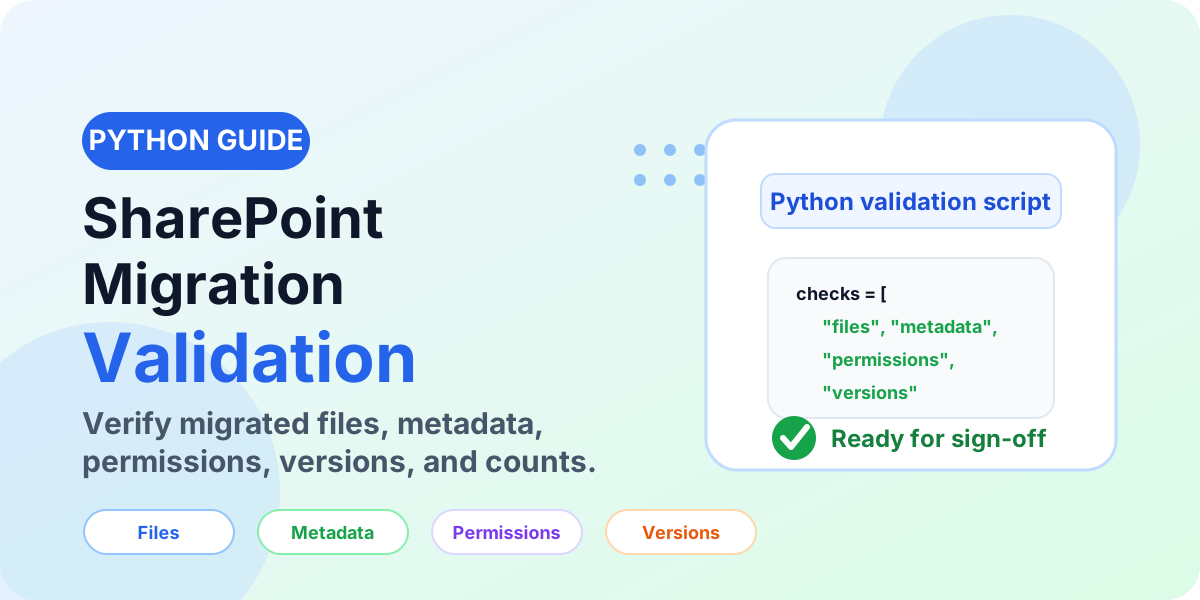
Learn how to validate a SharePoint migration with Python checks for files, folders, metadata, permissions, versions, data integrity, exception reports, and business sign-off.
By Suresh Girinathuni•7 min read
Companion architecture reading
These published guides support migration decisions on information architecture, modernization, development and automation.
What should I check before a Microsoft 365 migration?
Check eight things before moving data: source inventory, permissions and sharing, file/path restrictions, ownership, target information architecture, security and retention needs, migration tooling plus pilot scope, and communication with a validation plan.
There is no universal duration: a small library moves in days while enterprise programs run weeks to months. Data volume, item count, versions, permissions, remediation, throttling, and validation depth set the timeline — not copy speed alone.
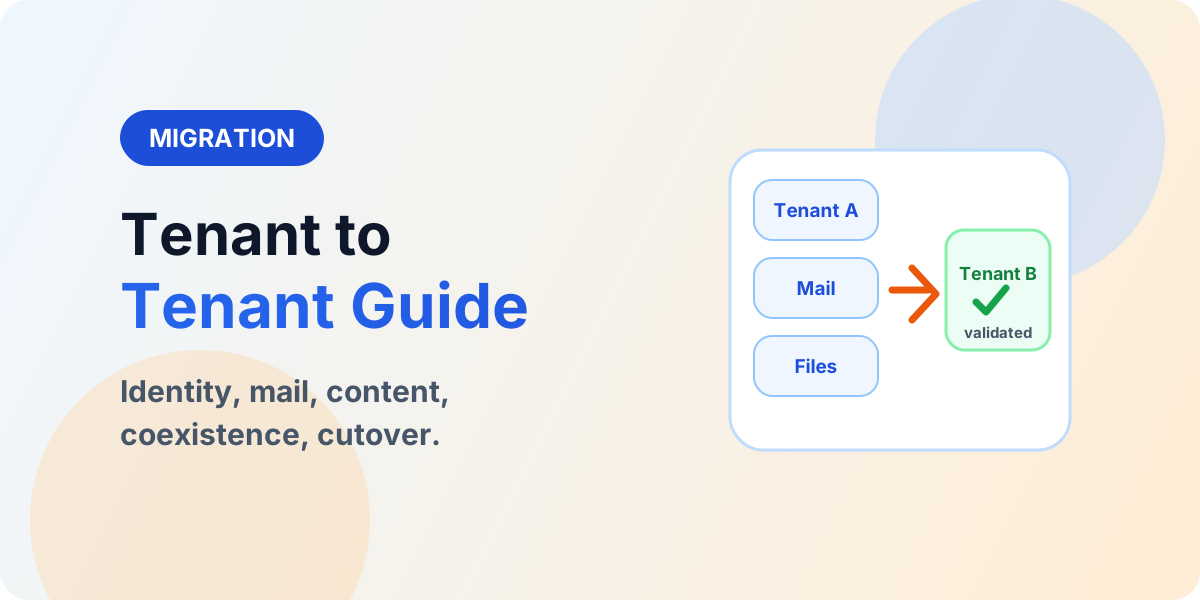
Tenant-to-tenant migration moves mailboxes, SharePoint, Teams, OneDrive, and identity configuration from one Microsoft 365 tenant to another — typically after mergers, acquisitions, or divestitures — with coexistence and cutover planning.
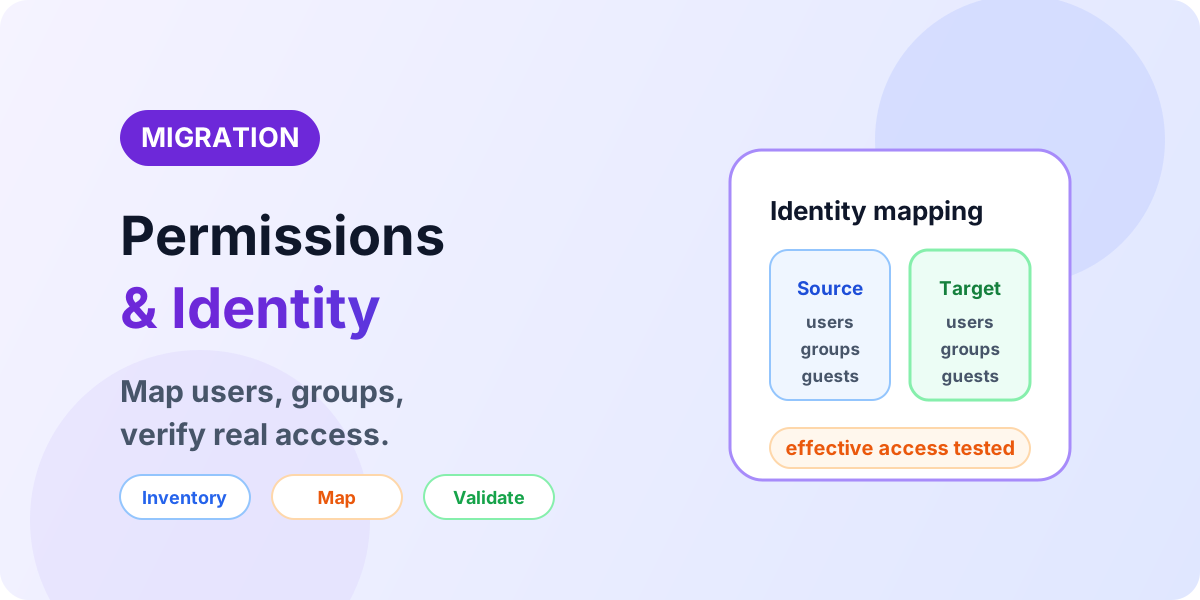
SharePoint permissions control access to sites, libraries, lists, folders, and items, usually through inherited access unless unique permissions are required.
Assessment, planning, modernization and validation decisions are easier to improve before cutover. Share the source, target, current risk and the decision you are trying to make.
It is the planned move of users, content, email, sites, permissions and collaboration workloads into Microsoft 365 or between Microsoft 365 tenants, including SharePoint Online migration, file-share modernization and tenant-to-tenant programs.
What should be assessed before a SharePoint migration?+
Assess sites, libraries, lists, files, metadata, content types, permissions, sharing, version history, workflows, forms, custom scripts, web parts, SPFx components, APIs, integrations, search, compliance, storage and unsupported content — then map findings to target architecture and migration waves.
What must be validated after a SharePoint migration?+
Validate file counts, folder structures, metadata, content types, permissions, version history, links, lists, views, search, workflows, Power Automate flows, Power Apps connections, SPFx components, integrations, sharing, users and groups, with business-owner sign-off per wave.
Do classic SharePoint customizations migrate directly to modern SharePoint?+
No. Classic pages, Script Editor and Content Editor Web Parts, JSLink, custom JavaScript, master pages, SharePoint Designer workflows, InfoPath forms and legacy solutions need individual review — retire, replace, modernize or rebuild them with modern pages, SPFx, Power Automate or Power Apps. There is no universal one-to-one mapping.
When is SPFx needed in a migration project?+
SPFx is needed when legacy customizations cannot move to modern SharePoint as-is and the business capability must be preserved. Assess each customization first, then decide whether to retire it, replace it with a modern or Power Platform capability, or rebuild it with SPFx and Microsoft Graph.


'%2F%3E%3Cstop%20offset%3D'1'%20stop-color%3D'rgb(220%2C252%2C231)'%2F%3E%3C%2FlinearGradient%3E%20%3ClinearGradient%20id%3D'migTitle'%20x1%3D'0'%20y1%3D'0'%20x2%3D'1'%20y2%3D'0'%3E%3Cstop%20offset%3D'0'%20stop-color%3D'rgb(37%2C99%2C235)'%2F%3E%3Cstop%20offset%3D'1'%20stop-color%3D'rgb(13%2C148%2C136)'%2F%3E%3C%2FlinearGradient%3E%20%3C%2Fdefs%3E%20%3Crect%20width%3D'1200'%20height%3D'600'%20fill%3D'url(%23migBg)'%2F%3E%20%3Ccircle%20cx%3D'1000'%20cy%3D'120'%20r%3D'132'%20fill%3D'rgb(219%2C234%2C254)'%20opacity%3D'0.7'%2F%3E%20%3Ccircle%20cx%3D'175'%20cy%3D'510'%20r%3D'138'%20fill%3D'rgb(204%2C251%2C241)'%20opacity%3D'0.55'%2F%3E%20%3Crect%20x%3D'80'%20y%3D'72'%20width%3D'256'%20height%3D'44'%20rx%3D'22'%20fill%3D'rgb(37%2C99%2C235)'%2F%3E%20%3Ctext%20x%3D'208'%20y%3D'101'%20text-anchor%3D'middle'%20font-family%3D'Segoe%20UI%2C%20Arial%2C%20sans-serif'%20font-size%3D'18'%20font-weight%3D'900'%20fill%3D'white'%20letter-spacing%3D'1.6'%3EBEGINNER%20GUIDE%3C%2Ftext%3E%20%3Ctext%20x%3D'80'%20y%3D'190'%20font-family%3D'Segoe%20UI%2C%20Arial%2C%20sans-serif'%20font-size%3D'68'%20font-weight%3D'900'%20fill%3D'rgb(15%2C23%2C42)'%3EMicrosoft%20365%3C%2Ftext%3E%20%3Ctext%20x%3D'80'%20y%3D'272'%20font-family%3D'Segoe%20UI%2C%20Arial%2C%20sans-serif'%20font-size%3D'74'%20font-weight%3D'900'%20fill%3D'url(%23migTitle)'%3EMigration%3C%2Ftext%3E%20%3Ctext%20x%3D'84'%20y%3D'335'%20font-family%3D'Segoe%20UI%2C%20Arial%2C%20sans-serif'%20font-size%3D'27'%20font-weight%3D'700'%20fill%3D'rgb(51%2C65%2C85)'%3EMove%20email%2C%20files%2C%20sites%2C%20chats%2C%20and%20users%3C%2Ftext%3E%20%3Ctext%20x%3D'84'%20y%3D'372'%20font-family%3D'Segoe%20UI%2C%20Arial%2C%20sans-serif'%20font-size%3D'27'%20font-weight%3D'700'%20fill%3D'rgb(51%2C65%2C85)'%3Eto%20Microsoft%20365%20with%20less%20disruption.%3C%2Ftext%3E%20%3Cg%20transform%3D'translate(82%2C455)'%20font-family%3D'Segoe%20UI%2C%20Arial%2C%20sans-serif'%20font-size%3D'16'%20font-weight%3D'850'%3E%20%3Crect%20x%3D'0'%20y%3D'0'%20width%3D'134'%20height%3D'42'%20rx%3D'21'%20fill%3D'white'%20stroke%3D'rgb(147%2C197%2C253)'%20stroke-width%3D'2'%2F%3E%3Ctext%20x%3D'67'%20y%3D'27'%20text-anchor%3D'middle'%20fill%3D'rgb(37%2C99%2C235)'%3EAssess%3C%2Ftext%3E%20%3Crect%20x%3D'152'%20y%3D'0'%20width%3D'134'%20height%3D'42'%20rx%3D'21'%20fill%3D'white'%20stroke%3D'rgb(134%2C239%2C172)'%20stroke-width%3D'2'%2F%3E%3Ctext%20x%3D'219'%20y%3D'27'%20text-anchor%3D'middle'%20fill%3D'rgb(13%2C148%2C136)'%3EPrepare%3C%2Ftext%3E%20%3Crect%20x%3D'304'%20y%3D'0'%20width%3D'134'%20height%3D'42'%20rx%3D'21'%20fill%3D'white'%20stroke%3D'rgb(196%2C181%2C253)'%20stroke-width%3D'2'%2F%3E%3Ctext%20x%3D'371'%20y%3D'27'%20text-anchor%3D'middle'%20fill%3D'rgb(124%2C58%2C237)'%3EMove%3C%2Ftext%3E%20%3Crect%20x%3D'456'%20y%3D'0'%20width%3D'134'%20height%3D'42'%20rx%3D'21'%20fill%3D'white'%20stroke%3D'rgb(253%2C186%2C116)'%20stroke-width%3D'2'%2F%3E%3Ctext%20x%3D'523'%20y%3D'27'%20text-anchor%3D'middle'%20fill%3D'rgb(234%2C88%2C12)'%3EValidate%3C%2Ftext%3E%20%3C%2Fg%3E%20%3Cg%20transform%3D'translate(748%2C118)'%20font-family%3D'Segoe%20UI%2C%20Arial%2C%20sans-serif'%3E%20%3Crect%20x%3D'0'%20y%3D'0'%20width%3D'360'%20height%3D'360'%20rx%3D'30'%20fill%3D'white'%20stroke%3D'rgb(191%2C219%2C254)'%20stroke-width%3D'2'%2F%3E%20%3Ctext%20x%3D'180'%20y%3D'48'%20text-anchor%3D'middle'%20font-size%3D'22'%20font-weight%3D'900'%20fill%3D'rgb(15%2C23%2C42)'%3ESource%20tenant%3C%2Ftext%3E%20%3Crect%20x%3D'55'%20y%3D'80'%20width%3D'250'%20height%3D'72'%20rx%3D'16'%20fill%3D'rgb(248%2C250%2C252)'%20stroke%3D'rgb(226%2C232%2C240)'%2F%3E%20%3Ctext%20x%3D'180'%20y%3D'124'%20text-anchor%3D'middle'%20font-size%3D'18'%20font-weight%3D'800'%20fill%3D'rgb(51%2C65%2C85)'%3EMail%20%2B%20OneDrive%20%2B%20Sites%3C%2Ftext%3E%20%3Cpath%20d%3D'M180%20174v54'%20stroke%3D'rgb(100%2C116%2C139)'%20stroke-width%3D'5'%20stroke-linecap%3D'round'%2F%3E%20%3Cpath%20d%3D'M164%20212l16%2018%2016-18'%20fill%3D'none'%20stroke%3D'rgb(100%2C116%2C139)'%20stroke-width%3D'5'%20stroke-linecap%3D'round'%20stroke-linejoin%3D'round'%2F%3E%20%3Ctext%20x%3D'180'%20y%3D'260'%20text-anchor%3D'middle'%20font-size%3D'22'%20font-weight%3D'900'%20fill%3D'rgb(37%2C99%2C235)'%3EMicrosoft%20365%3C%2Ftext%3E%20%3Crect%20x%3D'55'%20y%3D'286'%20width%3D'250'%20height%3D'46'%20rx%3D'14'%20fill%3D'rgb(239%2C246%2C255)'%20stroke%3D'rgb(191%2C219%2C254)'%2F%3E%20%3Ctext%20x%3D'180'%20y%3D'316'%20text-anchor%3D'middle'%20font-size%3D'17'%20font-weight%3D'800'%20fill%3D'rgb(37%2C99%2C235)'%3ESecure%20destination%3C%2Ftext%3E%20%3C%2Fg%3E%20%3C%2Fsvg%3E)
'%2F%3E%3Cstop%20offset%3D'1'%20stop-color%3D'rgb(236%2C253%2C245)'%2F%3E%3C%2FlinearGradient%3E%20%3ClinearGradient%20id%3D'migChecklistTitle'%20x1%3D'0'%20y1%3D'0'%20x2%3D'1'%20y2%3D'0'%3E%3Cstop%20offset%3D'0'%20stop-color%3D'rgb(37%2C99%2C235)'%2F%3E%3Cstop%20offset%3D'1'%20stop-color%3D'rgb(13%2C148%2C136)'%2F%3E%3C%2FlinearGradient%3E%20%3C%2Fdefs%3E%20%3Crect%20width%3D'1200'%20height%3D'600'%20fill%3D'url(%23migChecklistBg)'%2F%3E%20%3Ccircle%20cx%3D'1015'%20cy%3D'120'%20r%3D'132'%20fill%3D'rgb(219%2C234%2C254)'%20opacity%3D'0.72'%2F%3E%20%3Ccircle%20cx%3D'180'%20cy%3D'512'%20r%3D'138'%20fill%3D'rgb(204%2C251%2C241)'%20opacity%3D'0.55'%2F%3E%20%3Crect%20x%3D'80'%20y%3D'72'%20width%3D'238'%20height%3D'44'%20rx%3D'22'%20fill%3D'rgb(13%2C148%2C136)'%2F%3E%20%3Ctext%20x%3D'199'%20y%3D'101'%20text-anchor%3D'middle'%20font-family%3D'Segoe%20UI%2C%20Arial%2C%20sans-serif'%20font-size%3D'18'%20font-weight%3D'900'%20fill%3D'white'%20letter-spacing%3D'1.5'%3ECHECKLIST%3C%2Ftext%3E%20%3Ctext%20x%3D'80'%20y%3D'188'%20font-family%3D'Segoe%20UI%2C%20Arial%2C%20sans-serif'%20font-size%3D'68'%20font-weight%3D'900'%20fill%3D'rgb(15%2C23%2C42)'%3EMicrosoft%20365%3C%2Ftext%3E%20%3Ctext%20x%3D'80'%20y%3D'270'%20font-family%3D'Segoe%20UI%2C%20Arial%2C%20sans-serif'%20font-size%3D'72'%20font-weight%3D'900'%20fill%3D'url(%23migChecklistTitle)'%3EMigration%20Checklist%3C%2Ftext%3E%20%3Ctext%20x%3D'84'%20y%3D'334'%20font-family%3D'Segoe%20UI%2C%20Arial%2C%20sans-serif'%20font-size%3D'27'%20font-weight%3D'700'%20fill%3D'rgb(51%2C65%2C85)'%3EA%20beginner-friendly%20roadmap%20to%20plan%2C%3C%2Ftext%3E%20%3Ctext%20x%3D'84'%20y%3D'370'%20font-family%3D'Segoe%20UI%2C%20Arial%2C%20sans-serif'%20font-size%3D'27'%20font-weight%3D'700'%20fill%3D'rgb(51%2C65%2C85)'%3Emove%2C%20validate%2C%20and%20support%20your%20migration.%3C%2Ftext%3E%20%3Cg%20transform%3D'translate(84%2C455)'%20font-family%3D'Segoe%20UI%2C%20Arial%2C%20sans-serif'%20font-size%3D'16'%20font-weight%3D'850'%3E%20%3Crect%20x%3D'0'%20y%3D'0'%20width%3D'132'%20height%3D'42'%20rx%3D'21'%20fill%3D'white'%20stroke%3D'rgb(147%2C197%2C253)'%20stroke-width%3D'2'%2F%3E%3Ctext%20x%3D'66'%20y%3D'27'%20text-anchor%3D'middle'%20fill%3D'rgb(37%2C99%2C235)'%3EScope%3C%2Ftext%3E%20%3Crect%20x%3D'150'%20y%3D'0'%20width%3D'132'%20height%3D'42'%20rx%3D'21'%20fill%3D'white'%20stroke%3D'rgb(134%2C239%2C172)'%20stroke-width%3D'2'%2F%3E%3Ctext%20x%3D'216'%20y%3D'27'%20text-anchor%3D'middle'%20fill%3D'rgb(13%2C148%2C136)'%3EClean%20up%3C%2Ftext%3E%20%3Crect%20x%3D'300'%20y%3D'0'%20width%3D'132'%20height%3D'42'%20rx%3D'21'%20fill%3D'white'%20stroke%3D'rgb(196%2C181%2C253)'%20stroke-width%3D'2'%2F%3E%3Ctext%20x%3D'366'%20y%3D'27'%20text-anchor%3D'middle'%20fill%3D'rgb(124%2C58%2C237)'%3EPilot%3C%2Ftext%3E%20%3Crect%20x%3D'450'%20y%3D'0'%20width%3D'132'%20height%3D'42'%20rx%3D'21'%20fill%3D'white'%20stroke%3D'rgb(253%2C186%2C116)'%20stroke-width%3D'2'%2F%3E%3Ctext%20x%3D'516'%20y%3D'27'%20text-anchor%3D'middle'%20fill%3D'rgb(234%2C88%2C12)'%3EValidate%3C%2Ftext%3E%20%3C%2Fg%3E%20%3Cg%20transform%3D'translate(760%2C112)'%20font-family%3D'Segoe%20UI%2C%20Arial%2C%20sans-serif'%3E%20%3Crect%20x%3D'0'%20y%3D'0'%20width%3D'350'%20height%3D'392'%20rx%3D'28'%20fill%3D'white'%20stroke%3D'rgb(191%2C219%2C254)'%20stroke-width%3D'2'%2F%3E%20%3Ctext%20x%3D'175'%20y%3D'50'%20text-anchor%3D'middle'%20font-size%3D'24'%20font-weight%3D'900'%20fill%3D'rgb(15%2C23%2C42)'%3EMigration%20Plan%3C%2Ftext%3E%20%3Cg%20font-size%3D'18'%20font-weight%3D'800'%3E%20%3Ccircle%20cx%3D'62'%20cy%3D'100'%20r%3D'18'%20fill%3D'rgb(34%2C197%2C94)'%2F%3E%3Cpath%20d%3D'M53%20100l6%207%2013-16'%20fill%3D'none'%20stroke%3D'white'%20stroke-width%3D'4'%20stroke-linecap%3D'round'%20stroke-linejoin%3D'round'%2F%3E%3Ctext%20x%3D'98'%20y%3D'107'%20fill%3D'rgb(51%2C65%2C85)'%3EInventory%20content%3C%2Ftext%3E%20%3Ccircle%20cx%3D'62'%20cy%3D'158'%20r%3D'18'%20fill%3D'rgb(34%2C197%2C94)'%2F%3E%3Cpath%20d%3D'M53%20158l6%207%2013-16'%20fill%3D'none'%20stroke%3D'white'%20stroke-width%3D'4'%20stroke-linecap%3D'round'%20stroke-linejoin%3D'round'%2F%3E%3Ctext%20x%3D'98'%20y%3D'165'%20fill%3D'rgb(51%2C65%2C85)'%3EFix%20permissions%3C%2Ftext%3E%20%3Ccircle%20cx%3D'62'%20cy%3D'216'%20r%3D'18'%20fill%3D'rgb(34%2C197%2C94)'%2F%3E%3Cpath%20d%3D'M53%20216l6%207%2013-16'%20fill%3D'none'%20stroke%3D'white'%20stroke-width%3D'4'%20stroke-linecap%3D'round'%20stroke-linejoin%3D'round'%2F%3E%3Ctext%20x%3D'98'%20y%3D'223'%20fill%3D'rgb(51%2C65%2C85)'%3ERun%20pilot%20wave%3C%2Ftext%3E%20%3Ccircle%20cx%3D'62'%20cy%3D'274'%20r%3D'18'%20fill%3D'rgb(34%2C197%2C94)'%2F%3E%3Cpath%20d%3D'M53%20274l6%207%2013-16'%20fill%3D'none'%20stroke%3D'white'%20stroke-width%3D'4'%20stroke-linecap%3D'round'%20stroke-linejoin%3D'round'%2F%3E%3Ctext%20x%3D'98'%20y%3D'281'%20fill%3D'rgb(51%2C65%2C85)'%3EMigrate%20in%20waves%3C%2Ftext%3E%20%3Ccircle%20cx%3D'62'%20cy%3D'332'%20r%3D'18'%20fill%3D'rgb(34%2C197%2C94)'%2F%3E%3Cpath%20d%3D'M53%20332l6%207%2013-16'%20fill%3D'none'%20stroke%3D'white'%20stroke-width%3D'4'%20stroke-linecap%3D'round'%20stroke-linejoin%3D'round'%2F%3E%3Ctext%20x%3D'98'%20y%3D'339'%20fill%3D'rgb(51%2C65%2C85)'%3EValidate%20access%3C%2Ftext%3E%20%3C%2Fg%3E%20%3C%2Fg%3E%20%3C%2Fsvg%3E)

'%2F%3E%3Cstop%20offset%3D'1'%20stop-color%3D'rgb(204%2C251%2C241)'%2F%3E%3C%2FlinearGradient%3E%20%3ClinearGradient%20id%3D'spMigTitle'%20x1%3D'0'%20y1%3D'0'%20x2%3D'1'%20y2%3D'0'%3E%3Cstop%20offset%3D'0'%20stop-color%3D'rgb(37%2C99%2C235)'%2F%3E%3Cstop%20offset%3D'1'%20stop-color%3D'rgb(13%2C148%2C136)'%2F%3E%3C%2FlinearGradient%3E%20%3C%2Fdefs%3E%20%3Crect%20width%3D'1200'%20height%3D'600'%20fill%3D'url(%23spMigBg)'%2F%3E%20%3Ccircle%20cx%3D'1010'%20cy%3D'130'%20r%3D'132'%20fill%3D'rgb(191%2C219%2C254)'%20opacity%3D'0.6'%2F%3E%20%3Ccircle%20cx%3D'178'%20cy%3D'515'%20r%3D'145'%20fill%3D'rgb(153%2C246%2C228)'%20opacity%3D'0.55'%2F%3E%20%3Crect%20x%3D'80'%20y%3D'74'%20width%3D'250'%20height%3D'46'%20rx%3D'23'%20fill%3D'rgb(13%2C148%2C136)'%2F%3E%20%3Ctext%20x%3D'205'%20y%3D'104'%20text-anchor%3D'middle'%20font-family%3D'Segoe%20UI%2C%20Arial%2C%20sans-serif'%20font-size%3D'18'%20font-weight%3D'900'%20fill%3D'white'%20letter-spacing%3D'1.5'%3ESTEP-BY-STEP%3C%2Ftext%3E%20%3Ctext%20x%3D'80'%20y%3D'188'%20font-family%3D'Segoe%20UI%2C%20Arial%2C%20sans-serif'%20font-size%3D'66'%20font-weight%3D'900'%20fill%3D'rgb(15%2C23%2C42)'%3ESharePoint%20Online%3C%2Ftext%3E%20%3Ctext%20x%3D'80'%20y%3D'270'%20font-family%3D'Segoe%20UI%2C%20Arial%2C%20sans-serif'%20font-size%3D'76'%20font-weight%3D'900'%20fill%3D'url(%23spMigTitle)'%3EMigration%20Guide%3C%2Ftext%3E%20%3Ctext%20x%3D'84'%20y%3D'336'%20font-family%3D'Segoe%20UI%2C%20Arial%2C%20sans-serif'%20font-size%3D'27'%20font-weight%3D'750'%20fill%3D'rgb(51%2C65%2C85)'%3EMove%20sites%2C%20libraries%2C%20permissions%2C%3C%2Ftext%3E%20%3Ctext%20x%3D'84'%20y%3D'373'%20font-family%3D'Segoe%20UI%2C%20Arial%2C%20sans-serif'%20font-size%3D'27'%20font-weight%3D'750'%20fill%3D'rgb(51%2C65%2C85)'%3Emetadata%2C%20and%20users%20with%20less%20risk.%3C%2Ftext%3E%20%3Cg%20transform%3D'translate(84%2C455)'%20font-family%3D'Segoe%20UI%2C%20Arial%2C%20sans-serif'%20font-size%3D'16'%20font-weight%3D'850'%3E%20%3Crect%20x%3D'0'%20y%3D'0'%20width%3D'132'%20height%3D'42'%20rx%3D'21'%20fill%3D'white'%20stroke%3D'rgb(147%2C197%2C253)'%20stroke-width%3D'2'%2F%3E%3Ctext%20x%3D'66'%20y%3D'27'%20text-anchor%3D'middle'%20fill%3D'rgb(37%2C99%2C235)'%3EAssess%3C%2Ftext%3E%20%3Crect%20x%3D'150'%20y%3D'0'%20width%3D'132'%20height%3D'42'%20rx%3D'21'%20fill%3D'white'%20stroke%3D'rgb(134%2C239%2C172)'%20stroke-width%3D'2'%2F%3E%3Ctext%20x%3D'216'%20y%3D'27'%20text-anchor%3D'middle'%20fill%3D'rgb(13%2C148%2C136)'%3EMap%3C%2Ftext%3E%20%3Crect%20x%3D'300'%20y%3D'0'%20width%3D'132'%20height%3D'42'%20rx%3D'21'%20fill%3D'white'%20stroke%3D'rgb(196%2C181%2C253)'%20stroke-width%3D'2'%2F%3E%3Ctext%20x%3D'366'%20y%3D'27'%20text-anchor%3D'middle'%20fill%3D'rgb(124%2C58%2C237)'%3EMigrate%3C%2Ftext%3E%20%3Crect%20x%3D'450'%20y%3D'0'%20width%3D'132'%20height%3D'42'%20rx%3D'21'%20fill%3D'white'%20stroke%3D'rgb(253%2C186%2C116)'%20stroke-width%3D'2'%2F%3E%3Ctext%20x%3D'516'%20y%3D'27'%20text-anchor%3D'middle'%20fill%3D'rgb(234%2C88%2C12)'%3EValidate%3C%2Ftext%3E%20%3C%2Fg%3E%20%3Cg%20transform%3D'translate(744%2C112)'%20font-family%3D'Segoe%20UI%2C%20Arial%2C%20sans-serif'%3E%20%3Crect%20x%3D'0'%20y%3D'0'%20width%3D'372'%20height%3D'386'%20rx%3D'30'%20fill%3D'white'%20stroke%3D'rgb(191%2C219%2C254)'%20stroke-width%3D'3'%2F%3E%20%3Ctext%20x%3D'186'%20y%3D'52'%20text-anchor%3D'middle'%20font-size%3D'24'%20font-weight%3D'900'%20fill%3D'rgb(15%2C23%2C42)'%3EMigration%20flow%3C%2Ftext%3E%20%3Crect%20x%3D'58'%20y%3D'82'%20width%3D'256'%20height%3D'64'%20rx%3D'16'%20fill%3D'rgb(236%2C253%2C245)'%20stroke%3D'rgb(94%2C234%2C212)'%20stroke-width%3D'2'%2F%3E%20%3Ctext%20x%3D'186'%20y%3D'121'%20text-anchor%3D'middle'%20font-size%3D'19'%20font-weight%3D'900'%20fill%3D'rgb(13%2C148%2C136)'%3ESource%20SharePoint%3C%2Ftext%3E%20%3Cpath%20d%3D'M186%20162v54'%20stroke%3D'rgb(100%2C116%2C139)'%20stroke-width%3D'5'%20stroke-linecap%3D'round'%2F%3E%20%3Cpath%20d%3D'M170%20200l16%2018%2016-18'%20fill%3D'none'%20stroke%3D'rgb(100%2C116%2C139)'%20stroke-width%3D'5'%20stroke-linecap%3D'round'%20stroke-linejoin%3D'round'%2F%3E%20%3Crect%20x%3D'58'%20y%3D'238'%20width%3D'256'%20height%3D'64'%20rx%3D'16'%20fill%3D'rgb(239%2C246%2C255)'%20stroke%3D'rgb(147%2C197%2C253)'%20stroke-width%3D'2'%2F%3E%20%3Ctext%20x%3D'186'%20y%3D'277'%20text-anchor%3D'middle'%20font-size%3D'19'%20font-weight%3D'900'%20fill%3D'rgb(37%2C99%2C235)'%3ESharePoint%20Online%3C%2Ftext%3E%20%3Crect%20x%3D'82'%20y%3D'326'%20width%3D'208'%20height%3D'38'%20rx%3D'19'%20fill%3D'rgb(219%2C234%2C254)'%2F%3E%20%3Ctext%20x%3D'186'%20y%3D'351'%20text-anchor%3D'middle'%20font-size%3D'16'%20font-weight%3D'850'%20fill%3D'rgb(37%2C99%2C235)'%3ESites%20%2B%20files%20%2B%20access%3C%2Ftext%3E%20%3C%2Fg%3E%20%3C%2Fsvg%3E)