Publish Your Copilot to Custom Apps | Copilot Studio Day 54
Learn how to publish a Copilot Studio agent to custom web and mobile apps with connection details, chat UX design, authentication, data protection, actions, context, performance, testing, monitoring, and production readiness.
- Published
- Reading time
- 13 min read
Week 8 · Day 54 of 365 in 365 Days of Copilot Studio — view the full series
What you’ll learn
- Why Custom Apps?
- What Are We Building?
- Where Can You Integrate?
- Before You Start
- Publish Your Agent First
On this page (25 sections)
Day 54 of 365 Days of Copilot Studio explains how to publish your Copilot Studio agent to custom apps so users can access AI assistance inside the web, mobile, portal, or line-of-business experience they already use.
Custom app deployment gives you the most flexibility. You control the interface, placement, authentication flow, context, business actions, and monitoring experience. That flexibility is powerful, but it also means the app team must design the integration carefully instead of treating the copilot as a simple chat box.
This lesson builds on Day 51: Publish Copilot to Microsoft Teams, Day 52: Publish Copilot to a Website, and Day 53: Publish Copilot to Facebook Messenger.
[!NOTE] A custom app deployment is both a Copilot Studio release and an application integration project. Plan identity, UX, context, actions, data protection, and operations together.
Why Custom Apps?
Custom apps let you bring your copilot directly into the business process. Instead of sending users to a separate channel, the assistant can appear beside the form, dashboard, customer record, support case, policy page, or workflow where help is needed.
| Reason | What it enables | Example |
|---|---|---|
| Build for your users | Place AI help inside the exact app experience users already understand. | A service portal assistant that answers questions while a user opens a request. |
| Full UX control | Design layout, theme, placement, prompts, state, and handoff around your app. | An inline support panel, full-screen assistant, or compact contextual helper. |
| Deep business integration | Pass app context and connect the copilot to approved actions. | A customer app that passes account ID and case ID to guide support. |
| Secure workflows | Use your application identity model and permission checks. | An internal app that validates Entra ID users before showing private data. |
What Are We Building?
The target architecture is a custom application with a Copilot Studio-powered chat experience. The app may be a web app, mobile app, customer portal, employee portal, partner portal, or internal business system. The copilot helps users understand information, complete tasks, start actions, and move to human support when automation is not enough.
The practical lifecycle is:
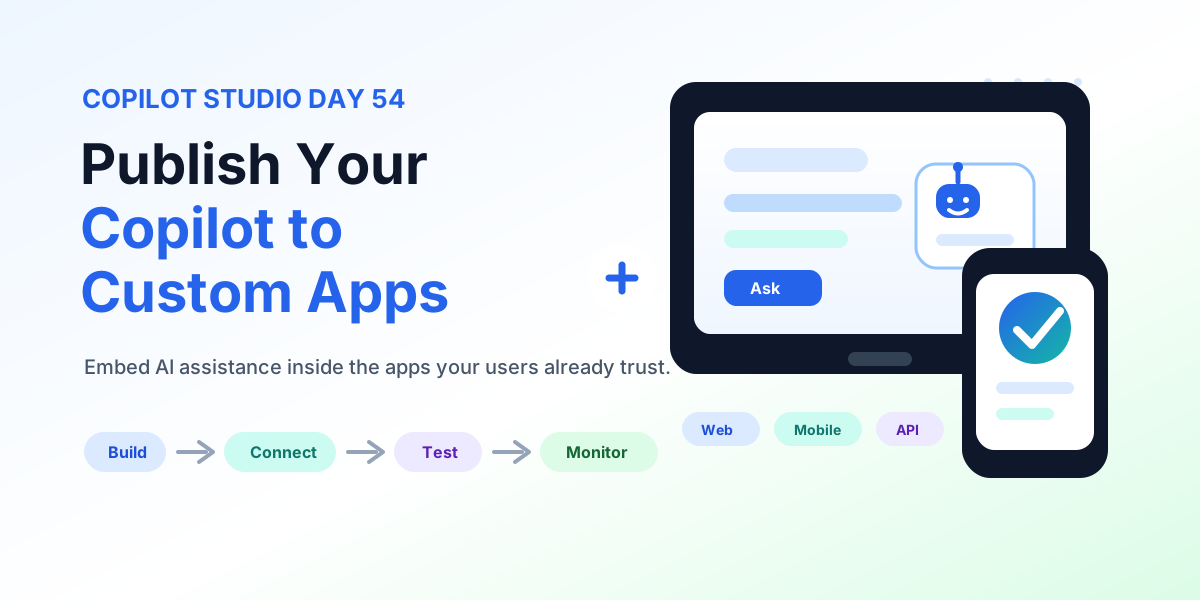
- Build the copilot: create the topics, instructions, knowledge, and actions.
- Publish the approved version: release the tested version in Copilot Studio.
- Choose an integration approach: decide how the app will host, call, or embed the chat experience.
- Connect the app: configure connection details, authentication, and context passing.
- Test and operate: validate real scenarios, monitor conversations, and improve continuously.
Where Can You Integrate?
Custom app deployment is useful wherever users need help inside a business workflow. The integration should be placed where the user has enough context to ask a useful question and where the assistant can offer a meaningful next step.
| App type | Useful copilot role | Example |
|---|---|---|
| Web application | Guide users through forms, dashboards, records, and help content. | Customer support portal or service request app. |
| Mobile application | Provide fast answers, guided actions, and compact chat support. | Field service, retail, onboarding, or customer self-service app. |
| Internal business system | Help employees understand policies, processes, records, and next steps. | HR, IT, finance, operations, or procurement app. |
| Custom portals | Support partners, customers, or vendors with controlled information. | Partner portal, supplier portal, or customer account area. |
Before You Start
Before you integrate Copilot Studio into a custom app, align the app team, copilot owner, security owner, and business owner. A custom app integration touches user experience, identity, data access, action execution, and support operations.
- Agent configured: the copilot purpose, topics, knowledge, and fallback behavior are ready.
- Knowledge ready: content is approved, current, and owned by the business.
- Topics tested: important journeys work with realistic user wording.
- Actions working: flows, connectors, APIs, and downstream systems are validated.
- Security considered: authentication, authorization, logging, and data boundaries are understood.
Publish Your Agent First
Publish the Copilot Studio agent before connecting it to a custom app. Publishing gives the app a stable version to call and gives the release team a clear boundary between draft changes and user-facing behavior.
- Run final tests: validate conversation paths, knowledge, actions, fallback, and permissions.
- Commit configuration: confirm the agent settings, topics, and environment-specific values are ready.
- Publish the version: release the approved copilot version for channel use.
- Record release notes: document what changed, what was tested, and who approved the launch.
Understand the Architecture
A custom app integration usually includes the custom user interface, Copilot Studio connection, identity layer, business data sources, connected actions, and monitoring. Each layer needs a clear owner.
| Architecture layer | Responsibility | Questions to answer |
|---|---|---|
| Custom app UI | Displays the chat experience and guides user interaction. | Where does chat appear? How does it work on mobile? How do users close it? |
| Connection layer | Connects the app to the published Copilot Studio agent. | Which endpoint, key, channel, or integration details are used? |
| Identity and access | Validates who the user is and what they can do. | Is sign-in required? What user claims or roles are passed? |
| Business actions | Lets the copilot retrieve data or trigger approved workflows. | Which actions are safe, audited, reversible, or approval-gated? |
| Monitoring | Tracks usage, errors, performance, quality, and feedback. | Who reviews issues and turns them into improvements? |
Choose Your Integration Approach
The right integration approach depends on how much control the app needs. A simple support experience may use an embedded chat panel. A deeper business workflow may need API-style integration, custom authentication, and context passing.
| Approach | Best for | Tradeoff |
|---|---|---|
| Embed chat | Fast rollout with a recognizable chat experience. | Less control over deep app behavior. |
| API integration | Custom UI, context-aware journeys, and tailored application behavior. | Requires more engineering, testing, and security review. |
| Direct Line or channel integration | Custom web or mobile chat experiences tied to the published agent. | Needs careful token handling, identity planning, and monitoring. |
| Controlled extension pattern | Enterprise apps with governance, approvals, and production release gates. | Slower to launch, but stronger for sensitive workflows. |
Get the Connection Details
Copilot Studio provides the connection details needed to link your custom app to the published agent. Treat these values as deployment configuration, not casual content.
- Open the agent: use the correct production-ready copilot.
- Choose the channel or integration option: select the custom app integration path your app will use.
- Collect connection details: capture the endpoint, channel details, client settings, token flow, or embed configuration.
- Store securely: keep secrets and tokens outside client-side code where required.
- Share with developers: provide only the details needed by the app team and document environment ownership.
Security rule: Do not hardcode sensitive connection details in front-end code. Use server-side configuration, managed secrets, and environment-specific settings where appropriate.
Build the Chat Experience
The chat experience should feel native to the app. Users should understand what the copilot can help with, how to start, how to recover from errors, and how to get human help.
- Messenger layout: choose an inline panel, side panel, modal, or dedicated assistant page.
- App theme: match the app's typography, colors, spacing, and interaction style.
- Mobile behavior: test small screens, keyboard behavior, scroll position, and tap targets.
- Typing indicators: show users that the assistant is working when responses take time.
- Conversation history: decide whether chat state persists across routes, sessions, or records.
Design for Conversation
Custom app users often ask questions in the middle of a task. The copilot should be context-aware without being noisy. It should help the user move forward, not pull them away from the workflow.
Design conversations around these principles:
- Understand user intent: map top questions to business goals and app screens.
- Use conversation starters: provide clear first-click options for common tasks.
- Keep responses short: answer in a format that fits beside the app workflow.
- Show rich responses carefully: use links, cards, and structured options only when they help.
- Handle edge cases: design fallback, clarification, and escalation paths before launch.
Add Conversation Starters
Conversation starters reduce blank-chat friction and steer users into supported journeys. In a custom app, starters should match the screen or role whenever possible.
| Screen | Starter | Purpose |
|---|---|---|
| Customer record | Summarize this account | Uses context to explain the current customer. |
| Support case | Suggest next step | Helps agents triage and respond faster. |
| Policy page | Explain this policy | Turns dense content into practical guidance. |
| Request form | Help me complete this | Guides users through required fields and validation. |
Plan Authentication
Authentication determines whether the app can safely personalize the copilot experience. For internal apps, the user may already be signed in with Microsoft Entra ID. For customer apps, identity may come from your own application login, B2C identity provider, or another system.
- Secure access: confirm who can open the chat and which app roles apply.
- User identity: decide what user claims are needed by the copilot or actions.
- Data protection: avoid exposing business records unless authorization is confirmed.
- Compliance needs: account for consent, audit, retention, and privacy requirements.
- Token handling: protect tokens and avoid leaking sensitive values into the browser.
Protect Business Data
Custom apps often sit close to valuable business data. That makes data protection one of the most important parts of the integration.
| Data concern | Control | Validation |
|---|---|---|
| Private records | Authorize access before returning details. | Test with users from different roles and departments. |
| Prompt context | Pass only the minimum context needed. | Review payloads for sensitive or unnecessary fields. |
| Action output | Filter returned data and mask sensitive values. | Test success, failure, and access-denied paths. |
| Logging | Keep logs useful but privacy-aware. | Confirm what is stored, where, and for how long. |
Connect Business Actions
Business actions turn the copilot from an answer bot into a workflow assistant. A custom app can use the copilot to start approvals, create records, update cases, send notifications, retrieve status, or call APIs.
Design actions with guardrails:
- Make actions explicit: users should know when the copilot is about to change data.
- Confirm sensitive operations: use confirmation steps for updates, submissions, or irreversible actions.
- Respect permissions: actions should run only within the user's allowed scope.
- Log outcomes: capture enough detail for support and audit without overcollecting data.
- Handle failures: explain failed actions and provide a recovery path.
Validate Every Action
Every action should be tested before production. This includes the happy path, invalid input, missing permissions, duplicate submissions, downstream outages, and slow responses.
| Action type | What to test | Failure signal |
|---|---|---|
| Create record | Required fields, ownership, duplicate detection, and validation rules. | Record fails silently or is created with incomplete data. |
| Retrieve data | Permissions, filtering, stale data, and empty results. | User sees too much, too little, or outdated information. |
| Update workflow | Approval rules, status transitions, audit trail, and rollback options. | Process moves to the wrong state or cannot be traced. |
| External API call | Timeouts, throttling, error codes, retries, and returned payload shape. | Conversation hangs or shows raw technical errors. |
Manage Conversation Context
Context is what makes a custom app copilot feel intelligent. The app may know the current user, role, page, record, cart, case, product, or transaction. Passing that context can make responses more useful, but it must be done carefully.
- Capture needed context: pass page, record, or workflow state when it improves the answer.
- Use context safely: never trust client-provided context without appropriate validation.
- Maintain state: decide whether the conversation follows the user across pages or resets per workflow.
- Control context scope: avoid mixing unrelated records or sessions.
- Respect privacy: avoid sending sensitive fields unless they are required and authorized.
Handle Errors Gracefully
Custom app users expect errors to be explained in the same tone as the rest of the application. Do not show raw connector messages, stack traces, or vague failures. Give users a clear next step.
| Error area | User-facing behavior | Team follow-up |
|---|---|---|
| Invalid input | Ask for the missing or corrected value. | Improve validation prompts and examples. |
| Permission issue | Explain that the user may not have access and offer support. | Review roles, policies, and authorization checks. |
| Action failure | Tell the user the task could not be completed and preserve context. | Check flow runs, connector logs, API responses, and retries. |
| Service delay | Set expectations and offer to continue or try later. | Review performance, timeout, and scaling behavior. |
Think About Performance
A custom app copilot should feel responsive. Users should not wait without feedback, lose context, or wonder whether the app is frozen.
- Measure response time: track how long common questions and actions take.
- Optimize action calls: reduce unnecessary connector calls and slow API requests.
- Use loading states: show a typing or progress indicator for longer responses.
- Handle timeouts: provide graceful recovery instead of leaving the user stuck.
- Review mobile performance: test chat behavior on real devices and slower networks.
Test the Complete Experience
Custom app testing must cover the full journey, not only the copilot response. Test the app screen, chat entry point, identity, context, actions, error paths, analytics, and support handoff together.
- Open the real app: start from the same page users will use.
- Launch the assistant: confirm placement, sizing, focus, and close behavior.
- Run top scenarios: ask real user questions and complete expected actions.
- Verify context: confirm the copilot understands the current page, role, or record only when appropriate.
- Check security: test with users who have different permissions.
- Review logs: confirm monitoring captures useful signals without exposing sensitive data.
Test Real User Scenarios
Bring in users from the roles the app actually supports. A custom app copilot may behave well for developers but fail for users who phrase things differently, have narrower permissions, or use the app on mobile.
Include these test groups:
- Normal users who complete everyday tasks.
- Power users who understand edge cases and process exceptions.
- Managers or approvers who need different data and actions.
- Users with limited permissions who should receive controlled results.
- Mobile users if the custom app is used outside desktop browsers.
Secure the Integration
Security review should happen before production, not after launch. Review identity, tokens, endpoints, connectors, CORS, storage, logs, and downstream data access.
- Use strong identity: rely on approved sign-in and role models.
- Protect API keys and secrets: store them in secure configuration, not browser code.
- Review authorization: confirm the user can access each record or action result.
- Validate inputs: do not trust front-end values blindly.
- Log responsibly: avoid storing sensitive chat or payload data without a reason.
Monitor After Deployment
After release, monitor both the copilot and the custom app integration. Conversation analytics show user behavior. Application telemetry shows performance, errors, and integration health. Together they tell you whether the assistant is actually helping.
Monitor these areas:
- Conversation volume, active users, and repeat usage.
- Top questions, missed intents, fallback rate, and unresolved issues.
- Action success rate, failures, timeouts, and retries.
- Authentication issues and permission denials.
- Page or feature areas where users ask for help most often.
- User satisfaction, support tickets, and business outcome changes.
Improve From Real Usage
Custom app copilots improve fastest when analytics, support feedback, and product telemetry feed the same backlog. Use real usage to decide what to change next.
- Review conversations: find repeated questions, confusing responses, and gaps.
- Improve topics: add triggers, simplify branches, and split overloaded journeys.
- Update knowledge: refresh stale content and remove conflicting sources.
- Improve actions: fix failures, reduce latency, and add clearer confirmations.
- Republish safely: test the changed behavior and release through the normal app process.
Production Checklist
- Copilot purpose, owner, audience, and success metrics are documented.
- Published agent version is approved for the custom app channel.
- Integration approach, connection details, and environment ownership are clear.
- Authentication, authorization, tokens, secrets, and data boundaries are reviewed.
- Custom chat UX works on desktop and mobile without blocking key workflows.
- Conversation starters, welcome message, fallback, and escalation paths are ready.
- Context passing is minimal, validated, and useful.
- Connected actions are tested for success, failure, permissions, and performance.
- Monitoring covers conversation quality, app telemetry, action health, and support impact.
- Release notes, support ownership, and improvement rhythm are assigned.
Key Takeaway
Publishing your Copilot Studio agent to a custom app is one of the strongest deployment patterns because it brings AI assistance into the exact workflow users already know. Success comes from planning the full experience: integration, security, validation, UX, actions, performance, monitoring, and continuous improvement.
The best custom app copilots are useful, secure, contextual, and easy to trust. Build the integration like a product feature, not a side widget.
Related resources
Topics covered
AI Agents · Integrations · Security · Web API · Architecture
Frequently asked questions
Can I publish a Copilot Studio agent to a custom app?
Yes. A Copilot Studio agent can be integrated into custom web, mobile, portal, or line-of-business apps when you use the right channel connection details, authentication model, and application integration pattern.
What should I prepare before integrating Copilot Studio with a custom app?
Prepare the published copilot, target app ownership, chat UX requirements, connection details, authentication approach, data boundaries, actions, monitoring plan, and test users.
Should a custom app copilot use authentication?
Usually yes when the agent uses user-specific data, business records, or connected actions. Public FAQ experiences may not need sign-in, but private workflows should validate identity and authorization.
How should custom apps pass context to Copilot Studio?
Pass only the context the agent needs, such as page, record, user role, account, or transaction identifiers. Avoid exposing sensitive data in the front end and validate permissions server-side where needed.
What should be tested before production launch?
Test real user journeys, authentication, permissions, context passing, connected actions, performance, error handling, fallback, accessibility, mobile behavior, monitoring, and support escalation.
Sources
Have a Microsoft 365 topic idea?
Share article suggestions, community session ideas, corrections, or real-world scenarios for future nextM365 learning notes.
Keep learning Microsoft 365
Explore more practical tutorials for SharePoint, Power Platform, Copilot Studio, migration, automation, governance, and security.
Continue learning
Related tutorials
Related questions
Related comparisons