Environment Variables | Copilot Studio Day 47
Learn how environment variables in Copilot Studio help you configure values per environment, reduce hardcoding, secure settings, support ALM, and deploy solutions across development, test, and production.
- Published
- Reading time
- 8 min read
Week 7 · Day 47 of 365 in 365 Days of Copilot Studio — view the full series

What you’ll learn
- What Are Environment Variables?
- Why Environment Variables Matter
- The Problem Without Environment Variables
- Environment Variable Definition vs Value
- Create an Environment Variable
On this page (17 sections)
Welcome to Day 47 of the 365 Days of Microsoft Copilot Studio series. Today we are focusing on environment variables in Microsoft Copilot Studio and why they are a critical part of clean solution management.
As soon as a copilot moves beyond a single test environment, configuration becomes a real ALM concern. API endpoints, SharePoint site URLs, list names, feature flags, timeout values, and service-specific IDs often differ between development, test, and production. If those values are hardcoded into topics, flows, actions, or app components, every deployment becomes risky.
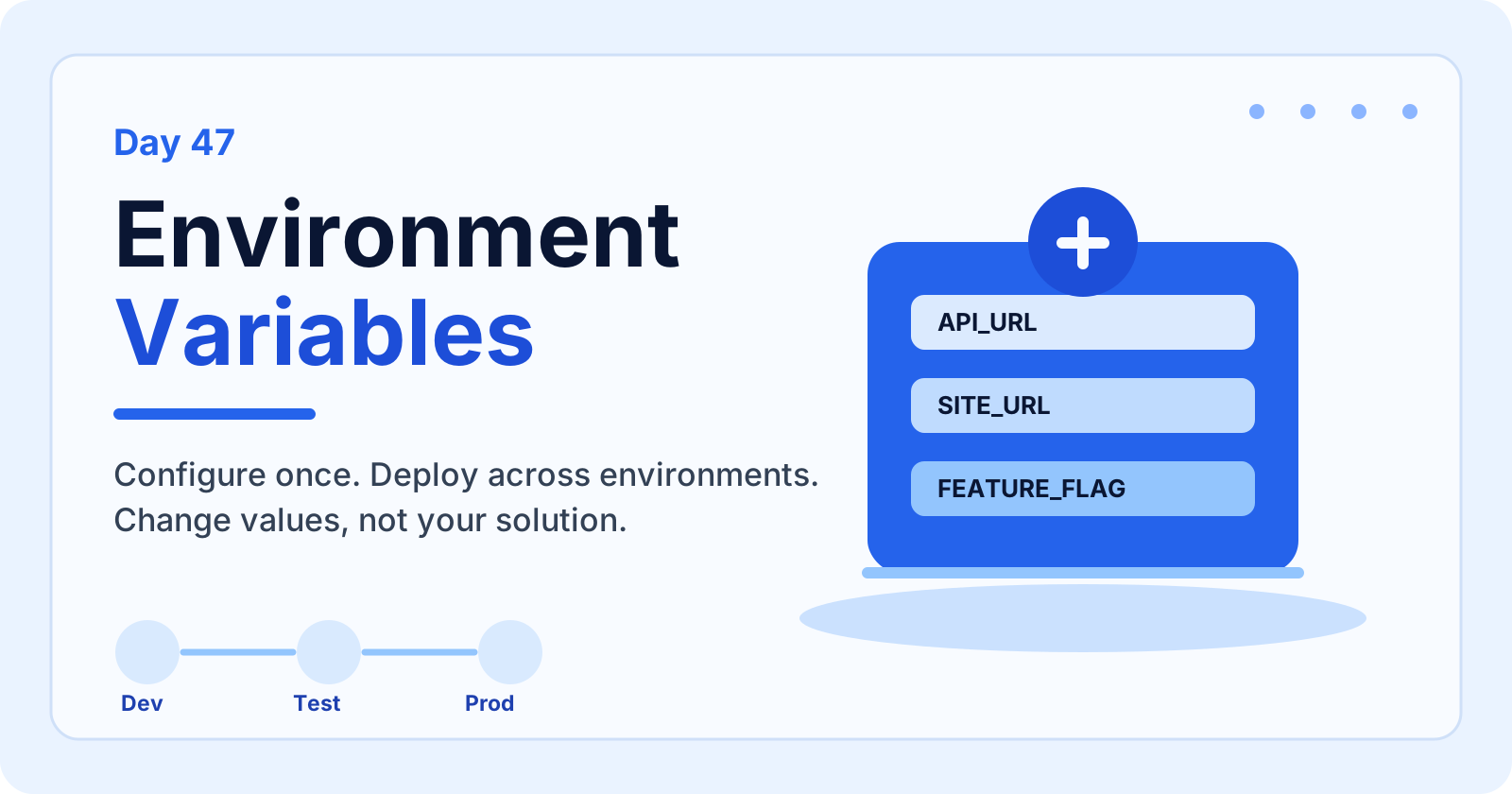
Environment variables solve that problem by separating configuration from solution logic. You configure the variable once, deploy the same solution across environments, and change the value where it needs to be different.
What Are Environment Variables?
Environment variables are solution-aware configuration values used by Power Platform components, including Copilot Studio agents, Power Automate flows, Power Apps, connectors, and Dataverse solution assets.
They help you store values that can change between environments without changing the solution itself. The solution keeps the same structure, while each environment keeps its own current value.
- Configure once: define the variable in the solution.
- Change values safely: update the current value per environment.
- Reduce risk: avoid editing agent logic just to point to a different endpoint.
- Support ALM: move solutions through development, test, and production with predictable configuration.
Why Environment Variables Matter
Environment variables make Copilot Studio solutions more flexible, portable, and maintainable. They are especially important when a solution includes flows, custom connectors, actions, or environment-specific data sources.
| Benefit | What It Means |
|---|---|
| Simpler configuration | Modify values per environment instead of editing the solution. |
| Better maintainability | Centralize settings and reduce hardcoded values in agents, flows, and apps. |
| Stronger security | Handle sensitive or environment-specific details more carefully. |
| Cleaner ALM | Deploy the same managed solution through Dev, Test, and Production. |
The Problem Without Environment Variables
Without environment variables, teams often hardcode values such as API_URL, TENANT_ID, TIMEOUT, or FEATURE_X directly into components. That may work during a demo, but it becomes fragile as the solution grows.
- Manual changes are required in several places.
- The wrong endpoint can be left in production.
- Testing becomes harder because values are mixed into logic.
- Releases take longer because each deployment requires extra edits.
- Scaling across environments becomes harder to govern.
[!TIP] Without environment variables, you change your solution. With environment variables, you change values.
Environment Variable Definition vs Value
Each environment variable has two important parts: the definition and the value.
| Part | Purpose | Example |
|---|---|---|
| Definition | Stores the variable structure, name, data type, description, and metadata. It stays the same across environments. | API_URL as Text |
| Value | Stores the actual environment-specific value. It can be different in each environment. | https://api.dev.com |
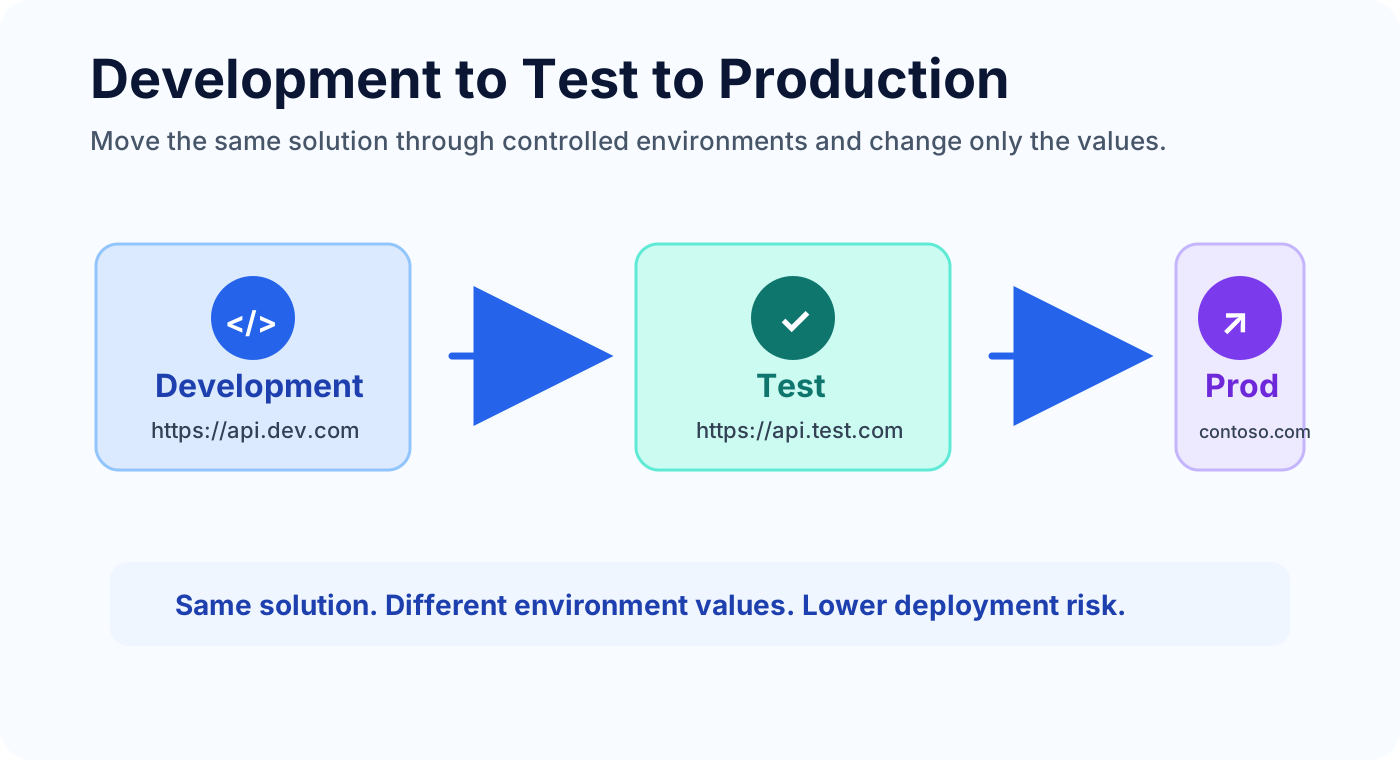
For example, the same API_URL variable can point to https://api.dev.com in development, https://api.test.com in test, and https://api.contoso.com in production.
Create an Environment Variable
Create environment variables inside a solution so they can travel with your Copilot Studio and Power Platform components.
- Go to Solutions: open the Power Platform maker portal and select Solutions.
- Select your solution: open the solution that contains your agent and related components.
- Add an environment variable: choose Environment variables and create a new item.
- Enter details: provide a clear name, data type, and description.
- Set the current value: enter the value for the current environment.
- Save: keep the variable inside the solution for deployment.
Environment Variable Data Types
The data type matters because it improves validation, consistency, and maintenance. Use the narrowest type that matches the value you are storing.
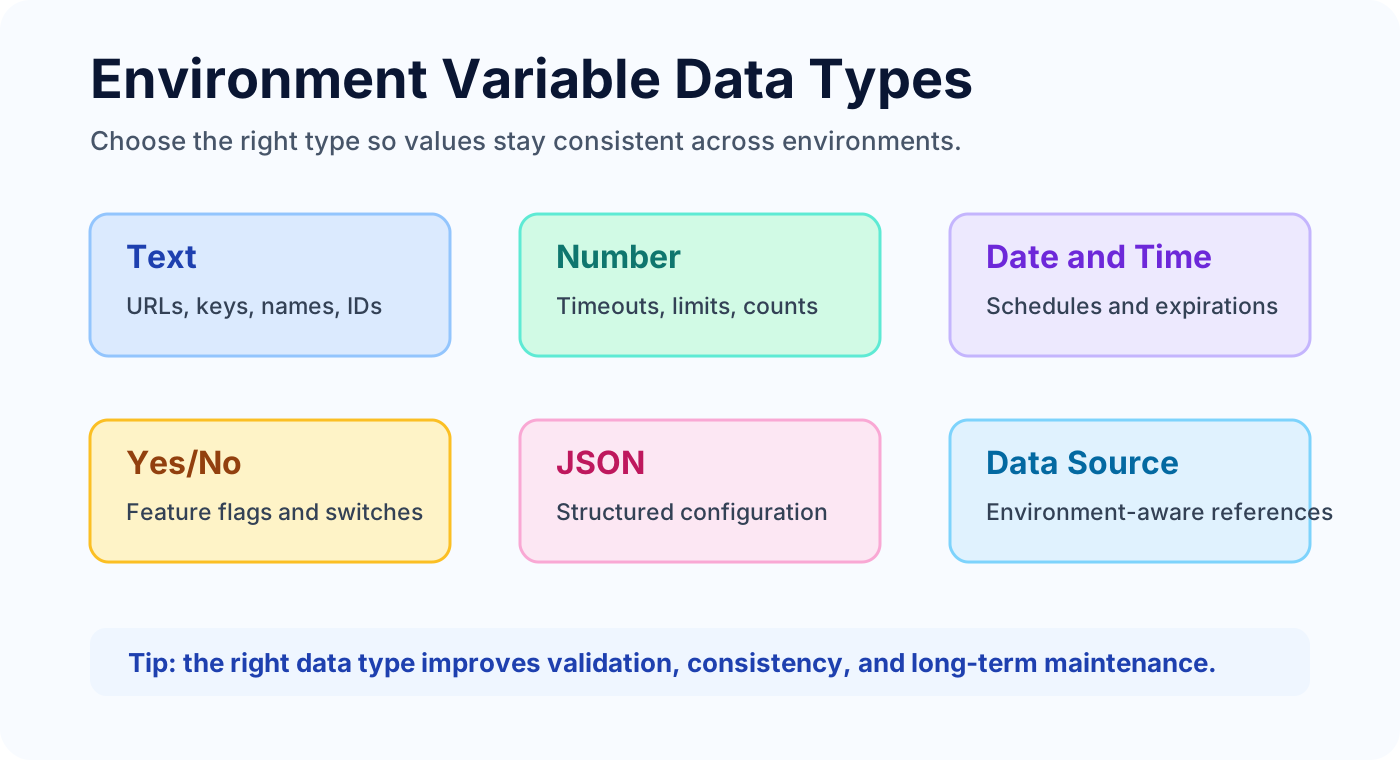
- Text: URLs, keys, names, site paths, list names, IDs, and labels.
- Number: retry limits, thresholds, timeout values, and counters.
- Date and Time: schedules, cutoff dates, expirations, and release windows.
- Yes/No: feature flags, switches, and rollout controls.
- JSON: structured configuration where one value must contain multiple settings.
- Data Source: data source references that need to remain environment-aware.
Use Environment Variables in Solutions
Environment variables become most useful when they are referenced by solution components. They can support Power Automate flows, Power Apps, connection-aware designs, custom connectors, and Copilot Studio agent actions.
- Create the environment variable in the solution.
- Add it to the correct solution components.
- Reference it in expressions, dynamic content, prompts, action configuration, or connector settings where supported.
- Deploy the solution across environments.
- Change the value in each environment without changing the solution logic.
This keeps configuration reusable, flexible, and easier to manage over time.
Use Environment Variables with Copilot Agents
Copilot Studio agents often depend on services and data that differ by environment. Environment variables help those agents stay flexible and secure.
| Configuration Area | Examples |
|---|---|
| Base URLs and endpoints | API base URL, service endpoint, webhook URL |
| SharePoint settings | Site URL, list name, library path, folder path |
| Keys and secrets | Environment-specific credentials or secret references where supported |
| Feature flags and options | Enable feature, disable beta behavior, route to pilot workflow |
| Timeouts and limits | Retry count, timeout seconds, result limit |
The goal is simple: deploy the same agent package, then update values rather than rebuilding the agent for each environment.
Development, Test, and Production
Environment variables support a clean deployment path from development to test to production. The solution remains the same, while values are adjusted for the environment where the solution is running.
| Environment | Purpose | API_URL Value |
|---|---|---|
| Development | Build, customize, and initial test | https://api.dev.com |
| Test | Validate behavior in a safe environment | https://api.test.com |
| Production | Run for real users and real data | https://api.contoso.com |
Environment-Specific Configuration
Different environments often need different runtime behavior. A development environment may use debug logging, a test environment may use validation endpoints, and production may use stricter limits and warning-only logs.
| Environment | API_URL |
LOG_LEVEL |
|---|---|---|
| Development | https://api.dev.com |
Debug |
| Test | https://api.test.com |
Information |
| Production | https://api.contoso.com |
Warning |
Common environment-specific settings include base URLs, API keys, connection strings, feature flags, retry limits, schedules, timeout values, and route selection.
Connection References vs Environment Variables
Connection references and environment variables are both important in solution management, but they solve different problems.
| Area | Connection References | Environment Variables |
|---|---|---|
| Purpose | Connect to external services such as Dataverse, SharePoint, SQL, and APIs. | Store values such as URLs, keys, names, IDs, flags, and settings. |
| What they store | Connection details such as who connects, where the connection points, and how it authenticates. | Data values that the solution uses at runtime. |
| How they are used | Flows, apps, agents, and connector-backed actions use the connection reference. | Expressions, dynamic content, settings, prompts, and component configuration use the variable value. |
| When to use | Use when the solution needs a service connection. | Use when a configurable value needs to change per environment. |
[!NOTE] Connection references handle the connection. Environment variables handle the configuration. Most production-ready solutions use both.
Update Values After Deployment
One of the strongest benefits of environment variables is that values can be updated after deployment without editing the solution.
- Go to Solutions in the target environment.
- Select the deployed solution.
- Open the environment variables.
- Update the current value.
- Save and validate the behavior.
For example, if the production API moves from https://api.contoso.com to https://api2.contoso.com, update the variable value in production instead of changing the agent, flow, or managed solution.
Common Environment Variable Mistakes
Environment variables are simple, but teams still run into problems when the naming, security model, and release process are unclear.
| Mistake | Risk | Better Approach |
|---|---|---|
| Hardcoding values | Breaks across environments and creates manual release work. | Use variables for every configurable value. |
| Using the same value everywhere | Can cause data leaks, wrong connections, or accidental production usage. | Set unique values for Dev, Test, and Production. |
| Storing sensitive values carelessly | Creates security and compliance risk. | Use secure handling for sensitive values whenever supported. |
| Confusing variables with connections | Connection behavior can fail or become hard to govern. | Use connection references for connections and variables for values. |
| Poor naming | Makes maintenance and troubleshooting harder. | Use clear, consistent, descriptive names. |
| No documentation | Future admins do not know what a variable controls. | Add descriptions and document usage. |
Environment Variable Best Practices
- Use meaningful names that describe the business or technical purpose.
- Use variables for all configurable values, especially URLs, IDs, flags, and limits.
- Handle sensitive values securely and limit who can view or change them.
- Set values separately in development, test, and production.
- Use connection references for connections and environment variables for settings.
- Document every variable with a useful description.
- Use consistent data types and avoid storing structured data as plain text unless needed.
- Review variables during release planning and solution import.
- Clean up unused variables so solution configuration remains understandable.
- Test agent behavior in every environment after value changes.
- Plan variable names for future growth instead of only the first release.
Simple Implementation Checklist
Use this checklist when preparing Copilot Studio solutions for controlled release:
- List every value that changes between environments.
- Move those values into environment variables inside the solution.
- Choose the correct data type for each variable.
- Add clear descriptions so owners understand each setting.
- Use connection references for service connections.
- Set current values in development, test, and production.
- Validate agent behavior after import and after each value update.
- Document ownership and review cadence for production variables.
How This Connects to Solution Management
In Day 46, Solution Management in Microsoft Copilot Studio, we covered packaging, moving, testing, and deploying agents through solutions. Environment variables are one of the practical tools that make that release model work.
They also connect to version discipline from Day 45, Version Management in Microsoft Copilot Studio. When configuration is separate from agent logic, it becomes easier to understand what changed: the version, the deployment package, or the environment value.
Key Takeaway
Environment variables help you build secure, flexible, and maintainable Microsoft Copilot Studio solutions. They separate configuration from code, reduce hardcoding, support environment-specific deployment, and make Dev-Test-Production releases easier to govern.
Use environment variables for configurable values, use connection references for connections, document every variable, and test each environment after deployment. That is how you build Copilot Studio solutions that are easier to move, safer to update, and ready for long-term operations.
Related resources
Topics covered
ALM · Governance · Security · Variables · AI Agents
Frequently asked questions
What are environment variables in Microsoft Copilot Studio?
Environment variables store configurable values that can change between development, test, and production without changing the Copilot Studio solution itself.
Why should I use environment variables instead of hardcoding values?
Environment variables reduce deployment risk because URLs, IDs, feature flags, and other environment-specific settings can be updated without editing flows, apps, agents, or solution components.
What is the difference between an environment variable definition and value?
The definition describes the variable name, data type, and purpose. The value is the actual environment-specific setting, such as a development API URL or production SharePoint site URL.
How are connection references different from environment variables?
Connection references manage service connections. Environment variables manage configurable values such as base URLs, list names, keys, IDs, feature flags, and timeouts.
Can Copilot Studio agents use environment variables?
Yes. Agents can use environment variables for URLs, site paths, API endpoints, feature flags, limits, and other configuration that should change safely across environments.
Sources
- Microsoft Learn: Alm, Microsoft
- Microsoft Learn: Microsoft Copilot Studio, Microsoft
Have a Microsoft 365 topic idea?
Share article suggestions, community session ideas, corrections, or real-world scenarios for future nextM365 learning notes.
Keep learning Microsoft 365
Explore more practical tutorials for SharePoint, Power Platform, Copilot Studio, migration, automation, governance, and security.
Continue learning
Related tutorials
Related questions
Related comparisons