Solution Management | Copilot Studio Day 46
Learn how solution management in Microsoft Copilot Studio helps you package, organize, move, test, deploy, update, and maintain agents across environments.
- Published
- Reading time
- 8 min read
Week 7 · Day 46 of 365 in 365 Days of Copilot Studio — view the full series

What you’ll learn
- What Is Solution Management?
- Why Use Solutions?
- Default Solution vs Custom Solution
- Create a Custom Solution
- Add Your Copilot Agent to a Solution
On this page (16 sections)
Day 46 of 365 Days of Copilot Studio focuses on solution management. After you learn how to test, debug, analyze, publish, and version a copilot, the next step is learning how to package and move that work safely.
Solution management helps you organize a Copilot Studio agent and its related Power Platform components so they can be maintained across environments. Instead of making loose changes in one place, you group the work into a solution that can be exported, imported, tested, upgraded, and governed.
This lesson builds on Day 44: Publishing Your Copilot and Day 45: Version Management. Publishing makes a tested version available to users. Solution management gives that version a clean lifecycle across development, test, and production.
What Is Solution Management?
In the Power Platform, a solution is a package that contains components belonging to an app, automation, agent, or business process. For Copilot Studio, the solution can include the copilot agent and the supporting components it depends on.
Solution management is the discipline of keeping those components organized, portable, and supportable. It helps makers answer practical release questions:
- Which components belong to this copilot?
- Which environment is the source of truth?
- Which package should move to test or production?
- Which dependencies must be included before export or import?
- Which version is currently deployed?
Why Use Solutions?
Solutions make it easier to manage, move, and maintain Copilot Studio assets the right way. They are especially important when a copilot grows beyond a single maker and a single environment.
- Consistency: keep components and configurations together.
- Faster deployment: move tested changes from development to test or production.
- Better collaboration: give teams a shared package and lifecycle.
- Easier updates: update and upgrade a solution with less confusion.
- Improved governance: control what gets deployed and who owns it.
- Reduced errors: minimize manual work and configuration mistakes.
Default Solution vs Custom Solution
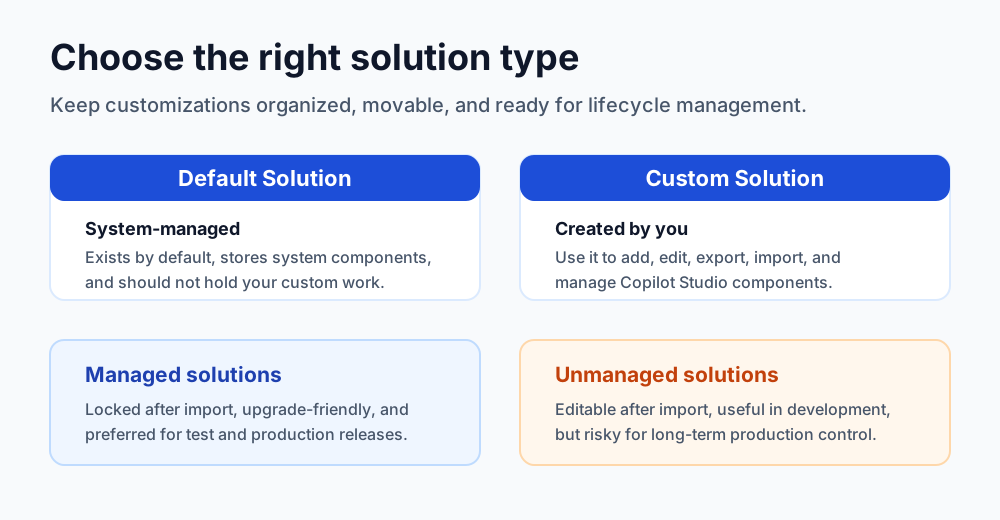
Every Power Platform environment has a default solution. It stores components, but it is not the right place to manage your custom Copilot Studio work. The default solution is system-managed and can quickly become messy when many unrelated components collect there.
A custom solution is created by you for a specific app, agent, business process, or release package. This is the recommended approach for application lifecycle management because it gives you a clean boundary for ownership, export, import, and tracking.
| Area | Default solution | Custom solution |
|---|---|---|
| Creation | Created automatically in every environment. | Created by you for custom components. |
| Purpose | Stores system-managed components and general environment assets. | Stores related customizations for a specific solution. |
| Control | Not ideal for edit, delete, export, or import discipline. | Designed for adding, editing, exporting, importing, and managing work. |
| Best use | Leave it untouched for custom work. | Use it for Copilot Studio lifecycle management. |
Best practice: always use a custom solution for Copilot Studio customizations and leave the default solution untouched.
Create a Custom Solution
Start by creating a custom solution before adding your copilot and related components. This gives the work a named package from the beginning instead of trying to clean it up later.
- Go to Solutions: open Copilot Studio or Power Platform maker portal and select Solutions.
- Create a new solution: choose New solution.
- Enter details: provide a clear name, publisher, and optional description.
- Save: create the solution.
- Prepare for build: use this solution as the container for your copilot work.
Add Your Copilot Agent to a Solution
After the custom solution exists, add the Copilot Studio agent to it. This keeps the agent in the same package as its related components and makes later export or deployment easier.
- Open the Copilot Studio agent you want to manage.
- Go to the agent settings.
- Select the solution that should contain the agent.
- Save the change.
- Confirm the agent now appears in the expected custom solution.
Add Required Components
A solution should include everything needed to move and run the copilot correctly. If you export only the agent but miss required dependencies, the import can fail or the copilot can behave differently in the target environment.
Common components to review include:
- Copilot agent: the main agent or assistant.
- Topics: conversation logic and topic flows.
- Connections: data sources and external services.
- Environment variables: configuration values that differ by environment.
- Security roles: access rules required for the solution to work.
- Other components: variables, Power Automate flows, skills, custom components, and related assets.
Tip: include related components early so missing dependencies do not appear during export, import, or deployment.
Managed vs Unmanaged Solutions
Power Platform solutions can be managed or unmanaged. Choosing the right type is one of the most important solution management decisions.
Unmanaged solutions are editable after import. They are useful during development and testing because makers can keep changing components quickly. However, unmanaged solutions are not ideal for long-term production deployment because they allow direct changes that are harder to govern.
Managed solutions are locked after import. They are designed for controlled deployment to test and production environments. Managed solutions support cleaner upgrades, reduce accidental changes, and make releases easier to control.
| Area | Managed solutions | Unmanaged solutions |
|---|---|---|
| Edit behavior | Components cannot be edited after import. | Components can be modified after import. |
| Upgrade path | Can be updated to newer versions. | Often requires removal and re-import for clean updates. |
| Best environment | Test and production. | Development. |
| Governance | Stronger control and fewer accidental changes. | More flexible, but easier to drift. |
Best practice: develop with unmanaged solutions and deploy with managed solutions for stability and control.
Export a Solution
Exporting creates a package that can be moved to another environment, saved as a backup, or shared with another team. Treat export as a release step, not just a file download.
- Open Solutions and select your custom solution.
- Choose Export.
- Review included components and dependencies.
- Choose export options, including managed or unmanaged.
- Download the solution package.
Import a Solution
Importing adds solution components to the target environment. Before importing, check dependencies, version compatibility, connections, environment variables, and target environment readiness.
- Open Solutions in the target environment.
- Choose Import solution.
- Select the solution package file.
- Review details, dependencies, and warnings.
- Import and validate the result.
Always test after import. Connections, permissions, and environment-specific configuration can differ even when the solution package imports successfully.
Development, Test, and Production Flow
A mature Copilot Studio lifecycle uses separate environments. Development is where makers build and customize. Test is where the team validates behavior safely. Production is where users depend on the stable release.
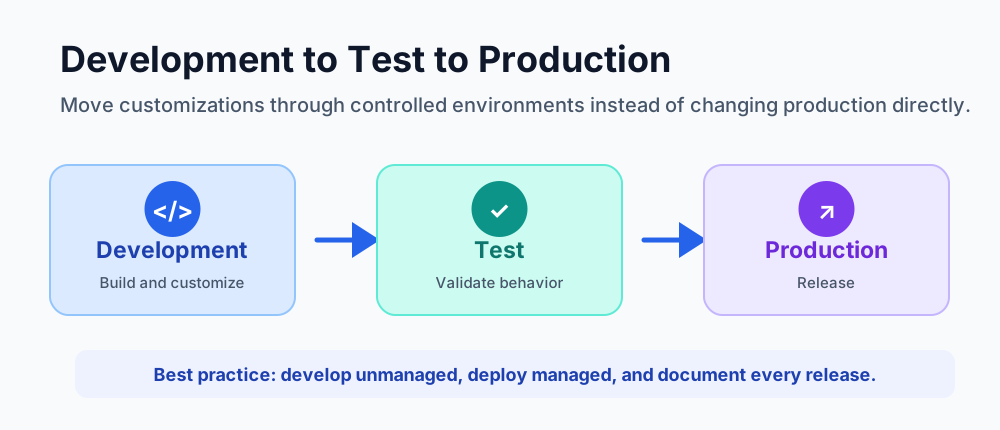
- Development: build and customize your copilot in an unmanaged solution.
- Test: import the solution into test and validate functionality, performance, permissions, and dependencies.
- Production: import the managed solution into production only after testing is complete.
Manage Solution Dependencies
Dependencies are the components your solution needs to work correctly. A Copilot Studio agent may depend on a Power Automate flow, a connection, an environment variable, a Dataverse table, another solution, or a security role.
Before export or import, check for dependencies carefully. Missing dependencies can cause import failures, broken actions, unavailable data, authentication problems, or inconsistent behavior in the target environment.
Common dependency areas include:
- Other solutions: components supplied by another solution package.
- Connections: APIs, data sources, and connectors used by actions.
- Environment variables: URLs, IDs, feature flags, and configuration values.
- Security roles: permissions required for users and service accounts.
- Custom components: Power Automate flows, Dataverse items, skills, and related assets.
Update and Upgrade Solutions
Solution management does not end after the first deployment. Your copilot will change as users provide feedback, processes evolve, new topics are added, and integrations improve.
An update usually applies changes to an existing solution without changing the overall version strategy. An upgrade usually moves the solution to a newer version with additional features, fixes, or structural improvements.
| Action | Use when | Typical result |
|---|---|---|
| Update | You need fixes or improvements inside the existing version path. | The solution remains current with smaller changes. |
| Upgrade | You are moving to a new version with broader changes. | The target environment receives the newer solution version. |
Back up before updating or upgrading. Then import the new package into a non-production environment first, test thoroughly, and only then promote it to production.
Common Solution Management Mistakes
| Mistake | Why it hurts | Better practice |
|---|---|---|
| Not using solutions | Customizations become scattered and hard to move. | Build and export customizations using solutions. |
| Too many small solutions | Management becomes complex. | Group related components into fewer well-structured solutions. |
| Missing dependencies | Imports fail or components do not work as expected. | Check dependencies before export and import. |
| Skipping backups | Recovery is harder when a release fails. | Back up solutions and environments regularly. |
| Importing to the wrong environment | Changes can create issues, conflicts, or rollback work. | Follow the development, test, and production path. |
Solution Management Best Practices
- Use solutions for all customizations: avoid loose unmanaged changes outside solutions.
- Keep solutions focused: group related components around a clear business purpose.
- Follow an environment strategy: develop in development, test in test, and deploy to production.
- Use managed solutions in production: protect components and reduce accidental changes.
- Back up regularly: export solutions and store backup packages safely.
- Check dependencies: validate required components before every export and import.
- Version and document solutions: maintain clear release notes and version history.
- Use consistent naming: apply predictable naming standards for solutions and components.
- Follow security best practices: use security roles and least privilege access.
- Test before deployment: validate all changes in a test environment before production.
Simple Release Checklist
- Create or update the custom solution.
- Add the Copilot Studio agent and related components.
- Check dependencies and environment variables.
- Confirm security roles and connection references.
- Back up the current stable solution.
- Export from development.
- Import and test in the test environment.
- Export or promote a managed package for production.
- Validate the production experience after deployment.
- Document version, owner, release notes, and rollback path.
Key Takeaway
Effective solution management keeps Copilot Studio agents reliable, scalable, and maintainable. Build smart with custom solutions, plan and validate dependencies, keep managed solutions in production, stay updated, and protect your work with backups and documentation.
Good solution management saves time, reduces risk, and makes long-term Copilot Studio success easier to sustain.
Related resources
Topics covered
ALM · Governance · Actions · Security · AI Agents
Frequently asked questions
What is solution management in Microsoft Copilot Studio?
Solution management is the practice of packaging, organizing, moving, testing, deploying, updating, and maintaining Copilot Studio agents and related Power Platform components across environments.
Should I use the default solution for Copilot Studio customizations?
No. Use a custom solution for your Copilot Studio customizations and leave the default solution untouched because it is system-managed and not intended for organized application lifecycle management.
What is the difference between managed and unmanaged solutions?
Unmanaged solutions are editable and useful during development. Managed solutions are locked after import, upgrade-friendly, and preferred for test and production deployments.
Why do solution dependencies matter?
Dependencies matter because a copilot may rely on connections, environment variables, security roles, Dataverse tables, Power Automate flows, and other components. Missing dependencies can cause imports or runtime behavior to fail.
When should I export a Copilot Studio solution?
Export a solution when you need to move it to another environment, create a backup, share it with another team, or prepare a controlled release package.
Sources
- Microsoft Learn: Publication Fundamentals Publish Channels, Microsoft
- Microsoft Learn: Alm, Microsoft
Have a Microsoft 365 topic idea?
Share article suggestions, community session ideas, corrections, or real-world scenarios for future nextM365 learning notes.
Keep learning Microsoft 365
Explore more practical tutorials for SharePoint, Power Platform, Copilot Studio, migration, automation, governance, and security.
Continue learning
Related tutorials
Related questions
Related comparisons