Copilot Studio Authentication Explained: Users, Connections, and Data Access
Design Copilot Studio authentication with Entra ID user sign-in, connection identities, consent boundaries, and least-privilege action access.
- Published
- Reading time
- 5 min read
What you’ll learn
- The two identities every agent uses
- Channel authentication decisions
- User authentication and knowledge access
- Action identities and connector security
- Recommended production pattern
On this page (13 sections)
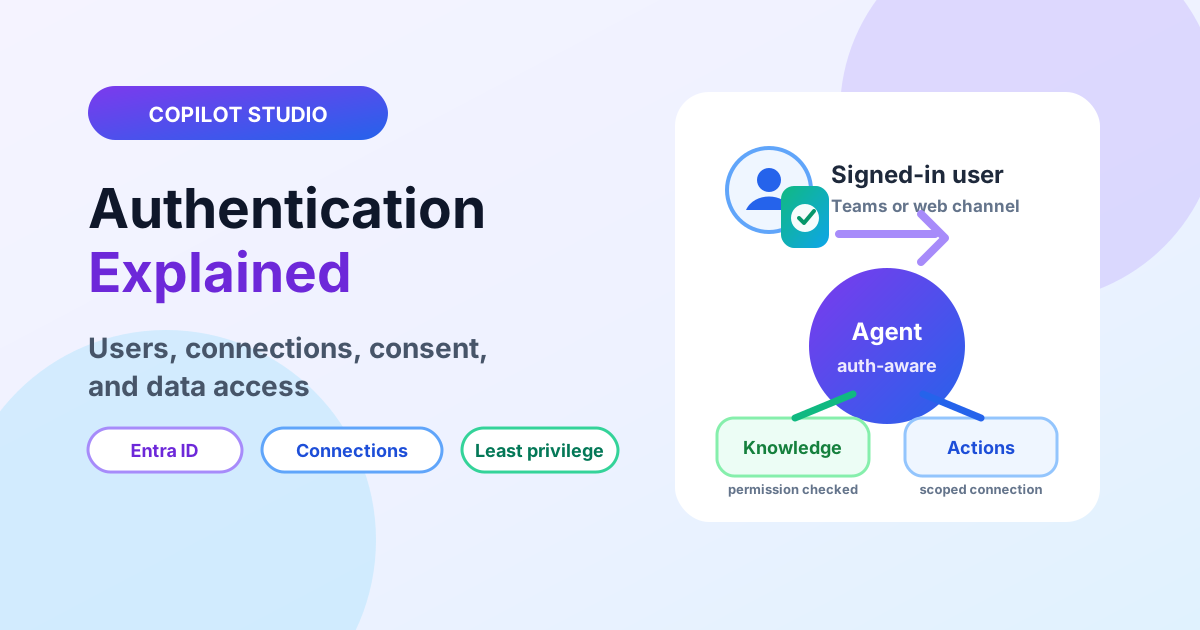
Direct answer: Copilot Studio authentication splits two ways: end users sign in (usually Entra ID) so knowledge respects their permissions, while actions execute under configured connection identities with scoped credentials. Design both deliberately — per channel, per knowledge source, per action — and test every path as a non-maker before production.
Start from the Copilot Studio hub and architecture pillar. Knowledge side: SharePoint security. Fast answer: How does authentication work in Copilot Studio?
The two identities every agent uses
A production Copilot Studio agent usually has two security stories running at the same time. The first is the chat user identity: who is asking the question, which channel they entered from, and whether they are signed in with Microsoft Entra ID. The second is the action identity: the account or connection that executes Power Automate flows, connectors, APIs, or Dataverse operations on behalf of the agent.
These identities are related, but they are not automatically the same. A user may be signed in as themselves while an action runs through a service account. That is normal, but it must be intentional. If you cannot explain which identity reads knowledge and which identity updates systems, the agent is not ready for production.
Channel authentication decisions
| Channel | Authentication posture | Good production use |
|---|---|---|
| Microsoft Teams | Usually signed in with Entra ID | Internal agents that need user-aware answers and enterprise context. |
| Authenticated website | Signed-in users through configured auth | Employee or partner portals where identity and permissions matter. |
| Anonymous website | No reliable user identity | Public FAQs, marketing help, or low-risk read-only scenarios. |
| Custom app | Depends on how the app passes identity and context | Line-of-business experiences with explicit token and permission design. |
The safest rule is simple: if the answer depends on who the user is, require authentication. If the action changes business data, authenticate the user and separately secure the action connection.
User authentication and knowledge access
Authenticated channels bind the conversation to an Entra ID identity, enabling permission-trimmed retrieval and auditable access. For SharePoint knowledge, that means the agent should answer from content the user is allowed to read, not from every file connected to the agent. This is why SharePoint permissions, sharing links, sensitivity labels, and stale content governance matter before the agent goes live.
Anonymous channels cannot safely rely on user-specific permissions. Keep anonymous agents limited to public knowledge, public documents, and read-only responses. Never attach privileged internal knowledge to a public-facing anonymous agent just because the initial prompt seems harmless.
Action identities and connector security
Actions are where authentication mistakes become operational risk. A knowledge answer may expose information, but an action can create a ticket, update a row, send an email, call an API, or start an approval. Every action needs a named connection identity, a privilege model, and a support owner.
- One service-owned connection per production system — never a maker’s personal account.
- Least privilege per action: read-only where reads suffice, scoped writes where they do not.
- Consent and secret lifecycle owned explicitly, with expiry alerts routed to the technical owner.
- Every privileged action gated behind confirmation or approval topics, logged with inputs and outcomes.
Recommended production pattern
- Classify the agent: public, internal, partner, or high-risk operational.
- Choose authenticated channels: require sign-in anywhere user-specific answers or actions are needed.
- Inventory knowledge sources: list every SharePoint site, file, website, Dataverse table, and connector the agent can touch.
- Assign connection ownership: replace personal maker connections with service-owned, monitored identities.
- Test as real users: maker, normal employee, manager, guest, blocked user, and user with no access.
- Document break-glass support: who rotates secrets, reconsents connectors, disables channels, or rolls back a release.
Security review checklist
| Check | Why it matters | Evidence to keep |
|---|---|---|
| Channel sign-in tested | Confirms the agent knows who the user is. | Screenshots or test notes for each channel. |
| Knowledge permission trimming tested | Prevents users from receiving answers from files they cannot open. | Test cases with allowed and denied users. |
| Action account reviewed | Stops maker accounts from becoming production dependencies. | Connection owner, role assignment, expiry plan. |
| Guest behavior validated | Guests often fail differently from employees. | Guest test transcript and expected access result. |
| Logging and escalation agreed | Authentication incidents need quick triage. | Runbook owner, alert path, rollback step. |
Common mistakes
Using maker-owned connections in production
This works until the maker leaves, changes password policies, loses a license, or revokes consent. Production agents should use service-owned connections with clear ownership and monitoring.
Assuming Teams sign-in secures every action
Teams authentication identifies the user in the conversation. It does not automatically mean every downstream action runs as that user. Check each flow, connector, and API call separately.
Testing only with administrators
Admin tests are misleading because admins can see too much. Always test with a normal employee, a restricted user, and a user who should receive no answer.
Putting private knowledge behind an anonymous channel
Anonymous channels are useful, but they should be treated as public. Keep them away from confidential SharePoint sites, privileged APIs, and internal operational workflows.
Failure modes to rehearse
Expired secrets, revoked consent, departed owners, guest users hitting member-only knowledge, and channel downgrades that strip identity. Rehearse each with a runbook entry: symptom, owner, fix, and time to recover. Cover the routine in the production checklist gates.
What good looks like
A production-ready agent has a one-page authentication design: channels, identity source, connected knowledge, action connections, owners, expiry dates, test users, and incident steps. Security reviewers should be able to read that page and understand exactly how access is controlled without opening the maker canvas.
Continue with ALM practices and conversation analytics.
Related resources
Topics covered
AI Agents · Security · Integrations
Frequently asked questions
How do users sign in to an agent?
Through the channel’s authentication — typically Microsoft Entra ID on Teams and web — so knowledge retrieval can respect each user’s permissions.
What identity do actions run under?
The configured connection identity for each flow or connector, with its own credentials and consent — independent of the chatting user unless designed otherwise.
What breaks authentication most often?
Departed connection owners, expired secrets, untested guest paths, and anonymous channels attached to privileged actions.
Sources
Have a Microsoft 365 topic idea?
Share article suggestions, community session ideas, corrections, or real-world scenarios for future nextM365 learning notes.
Keep learning Microsoft 365
Explore more practical tutorials for SharePoint, Power Platform, Copilot Studio, migration, automation, governance, and security.
Continue learning
Related tutorials
Related questions
Related comparisons